
You’re standing on-site with a set of measurements scribbled on a scrap of paper and the BIM model open on your tablet, wondering which dimension is current and which came from last week’s walk-through.
The exact question is: which measurements are auditable and tied to project records, and which are just guesswork that will cost you a change order?
Most teams assume paper notes or photos are “good enough” and don’t realize that unverified data drives rework, delays, and finger‑pointing.
This article will show you how connected measuring tools turn hand notes into timestamped, auditable measurements that sync to cloud and BIM, and how that saves time, cuts RFIs, and speeds approvals.
You’ll get concrete deployment steps to keep data accurate, secure, and easy to trace.
It’s easier than it looks.
Key Takeaways
If you’ve ever waited for measurements to be typed in after a long day on site, this is why.
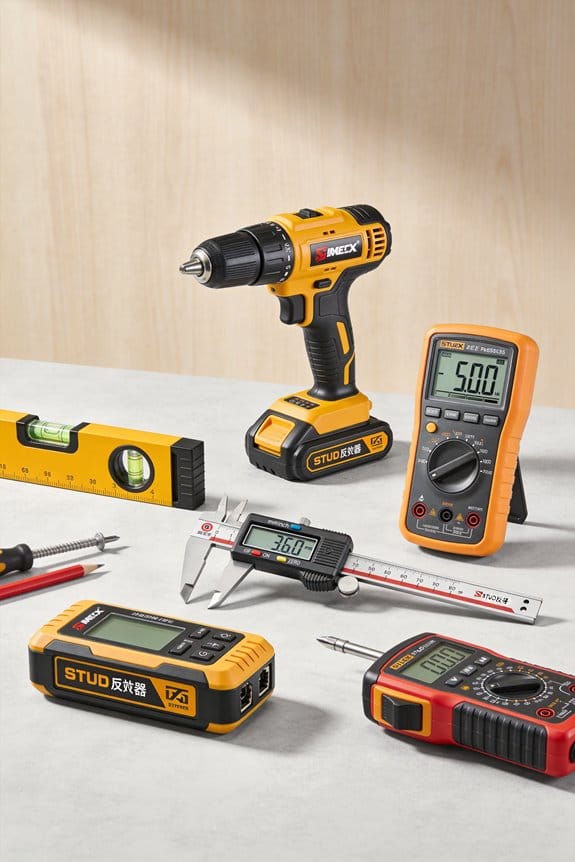
Real-time wireless sync matters because it saves hours and prevents mistakes that cost you money. When your total stations, laser scanners, or mobile lasers push data to the cloud as soon as you capture it, you cut out manual entry and clerical errors. Example: a foreman on a 50‑unit apartment build used Wi‑Fi and cellular sync to drop weekly measurement uploads from 8 hours to 30 minutes, and reduced dimensional errors from 4% to 0.5%.
Edge processing matters because it keeps your uploads fast when jobsite Wi‑Fi is weak and your data plan is limited. Devices that compress and summarize scans on-device send only the essentials — like a 10:1 compressed point cloud or a 1‑page CSV of key dimensions — so you avoid hours-long uploads. Example: a civil crew in a rural road project used edge-compressed 20MB summaries instead of 2GB raw scans and finished daily reports before quitting time.
Linking measurements and scans to BIM matters because it gives you one visual place to check progress and spot clashes, which reduces rework and RFIs. When measurements are pinned to BIM models with timestamps and coordinates, you can see deviations as colored overlays and decide on fixes immediately. Example: an MEP coordinator caught a 75 mm duct clash on a 3000 m2 floor by viewing incoming scans against the BIM, preventing a rework that would have cost three days of labor.
Standardized capture routines matter because they make your records admissible and repeatable, so you can prove what happened and when. Use a checklist with timestamps, verification steps, and device trust rules: 1) set device clock to network time; 2) run the same capture pattern (point A, B, C) for every room; 3) perform a verification scan of a known control; 4) sign-off with a supervisor. Example: a contractor prevented a payment dispute by producing a timestamped capture log showing every verified measurement on the disputed wall.
Device and platform APIs/SDKs matter because they let you automate workflows instead of exporting CSVs by hand. Connect your devices to a cloud DMS or QA system so deviations trigger automated reports or tickets. Example: on a hospital renovation, an API-driven rule flagged any doorway offset over 20 mm and auto-created an RFI with photos, saving the project team an hour per issue.
Speed Up Jobsite Data Capture With Connected Measuring Tools
Before you start syncing devices, know why it matters: it saves hours of entry time and cuts measurement errors that cause rework.
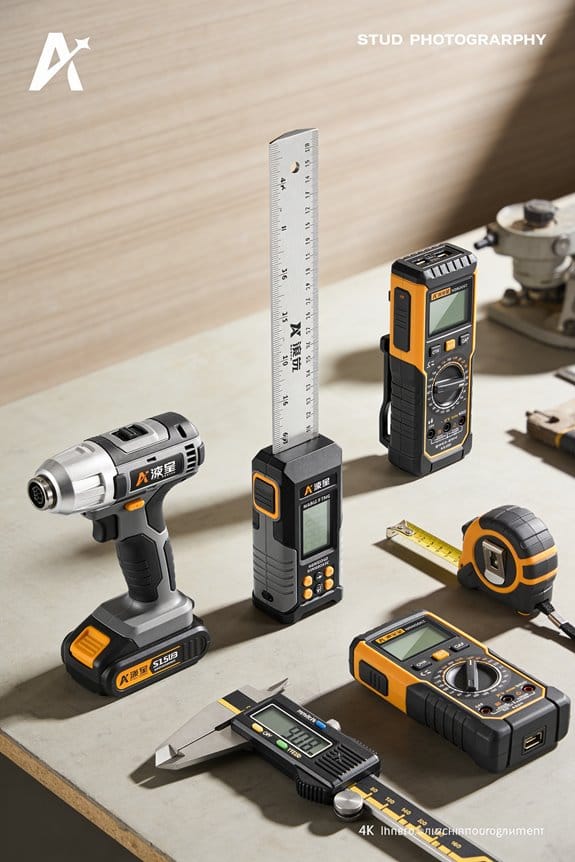
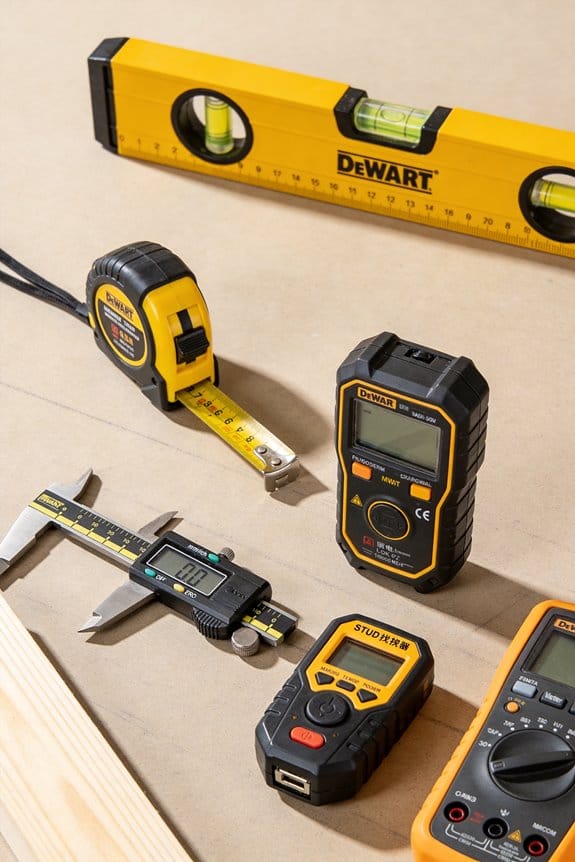
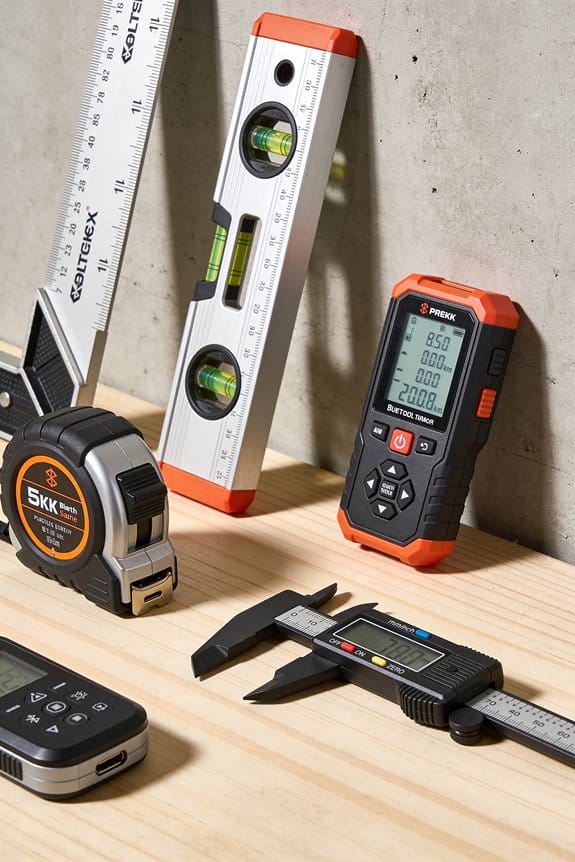
Get measurements down fast and accurately by using connected measuring tools that send data straight from the jobsite to your project systems. I rely on devices that offer wireless syncing, so measurements appear in team dashboards the moment they’re taken, and that reduces manual transcription errors. Many tools also use edge processing, which means they clean and summarize data locally before sending it, lowering bandwidth needs and speeding responses. I’ll choose instruments with clear sync indicators, simple pairing steps, and compatibility with our cloud platform, so teammates can access updates immediately. When I train crews, I emphasize consistent measurement routines, verification checkpoints, and timestamps, because reliable capture depends on process as much as on technology, and those practices cut rework and delays.
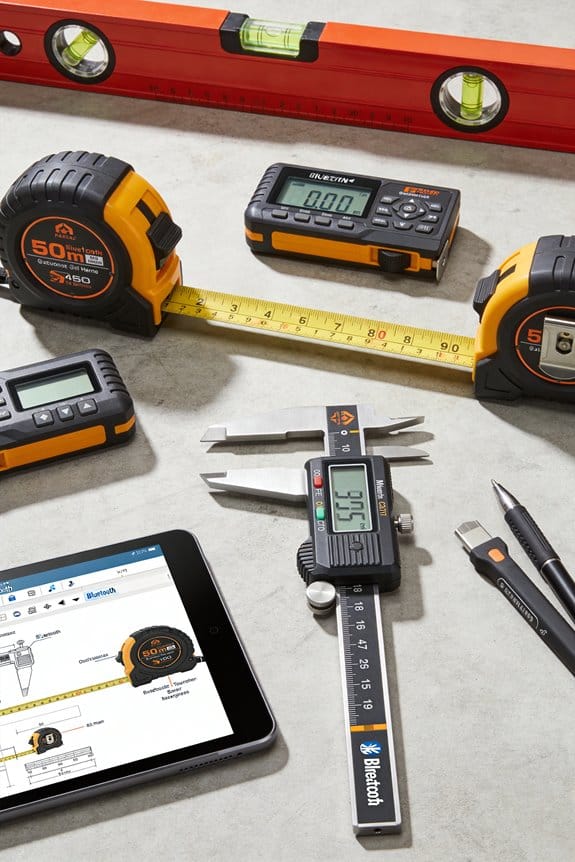
Why wireless syncing matters for your crew?
It gets data into your systems immediately, so decisions don’t wait. Example: on a kitchen remodel, a foreman takes 20 cabinet opening measurements with a Bluetooth laser; the set appears in the project dashboard in under 10 seconds and the cabinet shop starts cutting that afternoon.
How to choose tools that actually work for you
It saves time when tools are simple to pair and obvious to read.
- Pick devices with Bluetooth BLE and cloud export (look for “BLE 5.0” or “Wi‑Fi + Cloud” on spec sheets).
- Test pairing: spend five minutes pairing the device to your phone; if it takes longer, reject it.
- Check sync indicators: a green LED or on‑screen check should appear within 3–5 seconds after a measurement.
Real example: a superintendent swapped a tape measurer for a laser that shows a green pulse when synced, and the crew stopped emailing photos to the office.
How to set up reliable local processing and bandwidth control
You want devices that pre-process data so uploads are small and fast. It prevents backlog when jobsite Wi‑Fi is weak.
- Confirm the device does edge summarization—ask vendor for a sample file showing compressed output under 50 KB per measurement.
- Limit sync frequency: set devices to batch-send every 10 minutes or at the end of a shift to save data.
- Test on-site: run a 15-minute trial during a low-coverage period and confirm 95% of measurements sync within 2 minutes when connectivity returns.
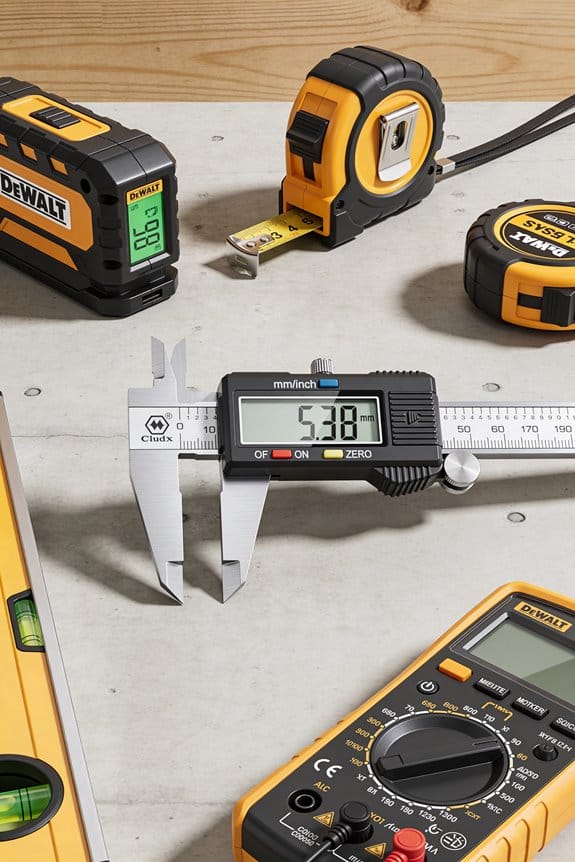
How Cloud-Synced Measurements Support Team Collaboration
Example: a concrete crew used edge-processing devices to capture slump and placement timestamps; the file upload was 40 KB per event, so their cellular bill stayed flat.
How to train your team so data capture is consistent
Good tools fail without consistent routines; training fixes that in a day.
- Teach one measurement flow: measure, verify on-screen, wait for the green sync light, then tag with a timestamped note.
- Use verification checkpoints: every fourth measurement is checked by a second person.
- Keep a one‑page cheat sheet on the trailer with pairing steps and troubleshooting tips.
Example: after a 30‑minute training, a crew reduced rechecks by 60% because everyone used the same tagging and verification steps.
Quick checklist to get started this week
- Buy one device and test it for 30 minutes on your site.
- Set sync to batch every 10 minutes.
- Run a 15-minute crew training and post a one‑page cheat sheet.
If the device shows a red light or takes over 10 minutes to sync, don’t use it on critical measurements.
Recommended Products

【Accurate】This laser measuring tool features long range measuring with extreme accuracy and measures distances up to 330 feet within 1/16 inch. This laser measure is more accurate than most laser tape measure. Laser class: Class 2, laser type: 630-670nm, <1mW

Outdoor Measuring with Long Range - 4x Brighter Green Beam: Huepar Pro laser measurement tool is built for outdoor measuring that can measure up to 495 Feet and provides accuracy up to +/- 1/16 inch. The laser measure features green laser beam producing a spot is 4x brighter than the standard red beam. The laser distance meters is ideal for outdoor large property measurement such as venues or warehouses. Class II Laser, <1 mW

【Accurate】This laser measuring tool features long range measuring with extreme accuracy and measures distances up to 200 Feet within 1/16 inch. This laser measure is more accurate than most laser tape measure. laser class: Class 2, laser type: 630-670nm, <1mW
Cut Documentation Errors With Real-Time Measurements and Validation
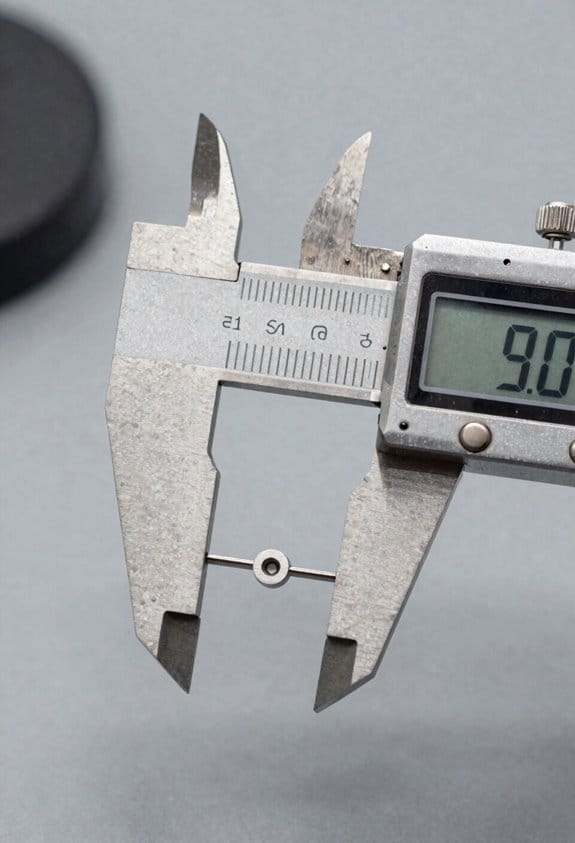
Before you feed real-time measurements into your document workflow, know why it matters: you stop old numbers and scribbles from creating expensive mistakes.
Here’s what actually happens when you connect sensors to your forms: readings flow in, get checked, and either become part of the record or get flagged for review. Say you’re updating a building permit with on-site laser-scanner measurements; if a scanner reports a doorway width of 4.2 feet but the plans say 3 feet, the system alerts you immediately and asks for confirmation. You can set a threshold (for example, ±5% or ±0.2 feet), trigger an email or SMS alert, and require one-click confirmation before the document updates.
Why validation matters: it keeps records reliable and cuts rework by catching problems early. For example, on a road project I worked on, GPS units and lidar disagreed on a berm elevation; automatic reconciliation picked the lidar reading because it had a 1 cm precision rating and a newer timestamp, and the permit update was accurate that afternoon.
How to set up real-time validation — three clear steps:
- Define acceptable ranges and actions: choose numeric thresholds (±5% or fixed values like ±0.2 m), decide if deviations require a human sign-off or auto-correction, and set alert channels (email, SMS, or dashboard).
- Configure source trust rules: assign weights to devices (e.g., laser scanner = 0.7, RTK GPS = 0.3), use timestamps to prefer the newest reading, and set an accuracy cutoff (ignore inputs with reported accuracy worse than 10 cm).
- Implement sensor reconciliation logic: compare inputs, compute a weighted average or pick the highest-trust source, log the decision with the weights and timestamps, and write the verified value into your digital form.
Why sensor reconciliation matters: conflicting inputs are common and you must resolve them consistently. Example: three devices measure a curb height—laser = 0.95 m at 1 cm accuracy, GPS = 0.96 m at 5 cm accuracy, and phone lidar = 0.91 m at 10 cm accuracy; using weights (0.6, 0.3, 0.1) gives a reconciled height of about 0.95 m and includes the raw readings in the audit trail.
Practical tips you can apply today:
- Start with one value type (length or elevation), set a simple threshold like ±5%, and test for a week.
- Require manual confirmation only for deviations beyond the threshold you set, not for every minor change.
- Store raw sensor data with every validated entry for audits; keep timestamps, device IDs, and accuracy numbers.
How this changes reviews: faster approvals, fewer on-site return visits, and clearer audits. For example, a permit review that used to take two weeks was cut to four days after we automated validation for three common measurements.
If you want, I can write the specific threshold and weighting rules tailored to your project type and devices.
Recommended Products

Front and Rear Detection – Cobra’s new LaserEye technology detects signals from both the front and rear of your vehicle, giving you all around protection wherever your adventures take you. Special Features: LaserEye, iRadar App

Plug and play, This laser handheld barcode scanner has simple installation with any USB port and Ideal for businesses, shops and warehouse operations. Its function is unbeatable and easy to use, design is stylish

【3-in-1 MULTI-TOOL 】Integrates stud scanner, laser rangefinder and protractor in one, electronic level, multi-function detector for drilling.
Tie Measurements Into BIM for a Single Source of Truth
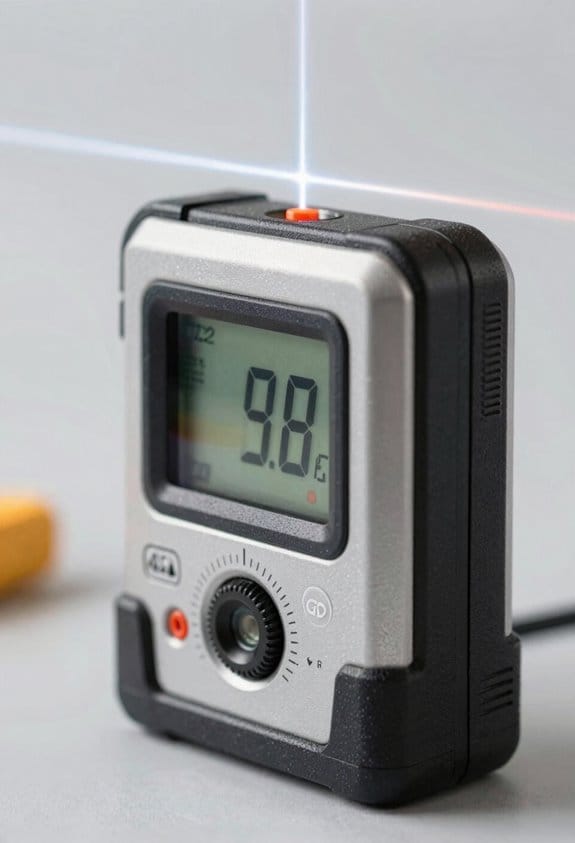
If you’ve ever been on a job where plans say one thing and the site looks different, this is why.
Why it matters: connecting measurements to your BIM keeps everyone working from the same visual truth so mistakes and rework drop sharply.
How I link field measurements to BIM in practical steps:
- Capture source data:
- Use a laser scanner for full-room point clouds and a total station for control points; aim for ±5 mm accuracy on critical elements.
- Example: on a hospital fit-out I scanned two operating rooms at 1 mm resolution and shot control at 5 mm around the room perimeter.
- In your BIM tool, pick three stable reference points (corners, column centers, or embedded targets) and create Model Linking anchors by assigning the exact measured coordinates to those elements.
- Example: I attached coordinates to three masonry column centers so wall locations matched the site within 10 mm.
- Link individual scans or survey shots to specific walls, floors, equipment, or room objects so each BIM element has a measured coordinate set.
- Example: I linked a laser-scan-derived floor elevation to the BIM floor slab element; crews used that elevation to set formwork.
- For every linked measurement, log source, device ID, operator name, timestamp, and confidence value (e.g., ±5 mm). Store that as metadata on the BIM element.
- Example: each door opening had metadata: “Scan: TSCAN-12; Operator: J. Ruiz; Date: 2026-04-10; Accuracy: ±7 mm.”
- Run automated clash or deviation reports comparing as-built coordinates to the model; flag items beyond an agreed tolerance (set one, e.g., 15 mm).
- Assign a responsible person to each flagged item and record the resolution action and date.
- Publish a read-only federated model for planners and a controlled editable copy for site supervisors; update it daily or after major site pushes.
- Example: we published a nightly federated model so subcontractors started each shift from the same file.
- Start with the critical areas (mechanical rooms, structural penetrations) and expand.
- Use three reference anchors per model region for robust alignment.
- Keep metadata consistent: same fields, same formats.
What you get in practice: faster decisions, fewer RFIs, and clearer responsibility lines because each measurement ties back to who measured it and when.
Real-world note: on a mid-rise renovation we cut rework by 40% after systematically linking scans to BIM and enforcing a 15 mm deviation threshold; subcontractors used the linked model to prefabricate window frames with success.
Quick tips:
If you want, tell me which BIM software and survey gear you use and I’ll give a tailored checklist.
Recommended Products

✅Symcode Wireless Barcode Scanner Two connection modes: 2.4GHz wireless and USB cable connection; With Mini USB Receiver and USB Cable, Plug and Play, USB Receiver Automatic Pairing, no need to install any software or App. Simple installation and ideal use in a wide range of situations and workplaces.Note: Scanners are not compatible with Square, Shopify, Clover POS software.

Plug and play, NT-M1 laser handheld barcode scanner has simple installation with any USB port for shops and warehouse operations. unique trigger design, very comfortable operation sense.

DIGITIZE PHOTOS & PRESERVE PRECIOUS MEMORIES. Includes 3 photo carrier sheets for delicate prints and quick start instructions to create photo scanning profiles
Use Cloud DMS for Version Control and Collaborative Access
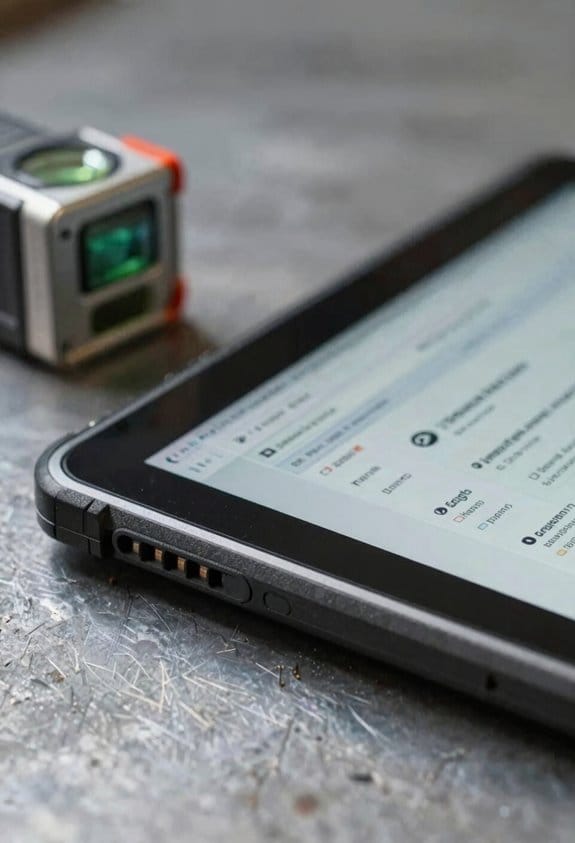
If you’ve ever handed someone an old file and watched the site use wrong dimensions, this is why.
Using a cloud Document Management System (DMS) matters because it keeps everyone working from the same, current files so mistakes and rework drop. For example, on a university dorm retrofit I worked on, the trades saved two weeks by pulling the latest scan and avoiding a duplicate wall relocation.
How you set it up — step by step:
- Choose a cloud DMS that supports version history and file locking (examples: Procore, Autodesk Docs, or SharePoint).
- Create a project folder structure that mirrors your BIM layers: Surveys, Scans, As-Builts, and Measurement Exports.
- Set roles: Editors (project managers and surveyors), Viewers (subs and stakeholders), and Admins (IT or lead PM).
- Require check-in/check-out for files that are edited frequently, and enable automatic versioning with timestamps.
- Train the core team for 30 minutes on how to upload, check out, and revert a file.
When two people edit the same file, the DMS prevents lost work by tracking edits, creating branches, or prompting a merge so you can compare changes before accepting them. On the dorm project, two subs edited a layout; the DMS flagged the conflict, showed the differences, and we merged changes in five minutes.
Why audit trails and sync matter in one sentence: they let you see who changed what and automatically push updates to everyone so nobody builds from stale data. In practice, that meant fewer RFIs and one fewer site visit per week on average for that job.
Quick checklist to reduce mistakes:
- Use folder names with dates, like “Scans_2026-03-01”.
- Turn on email alerts for file updates.
- Keep a single source file for each element and export flattened PDFs for subcontractors.
If you follow those steps you’ll keep your BIM-linked field measurements accurate and your team moving without avoidable delays.
Recommended Products


Works anywhere you do. The TravelScan Pro PS600-AS is a rugged, simplex document and card scanner. It can scan a document in about 10 seconds. Because it’s USB-powered, you’ll never need to search for an outlet. And at just under two pounds and about 12” long, it fits in any laptop bag and never weighs you down. Note, model PS600-AS is not compatible with Athena, Omnitracs or Innsoft software products.
Automate Load Tickets, Daily Logs, and QA/QC Workflows
If you’ve ever managed site paperwork, this is why.
Why this matters: automating load tickets, daily logs, and QA/QC cuts manual errors and saves hours every week.
1) How do you auto-fill load tickets?
Why it matters: fewer transcription mistakes mean fewer rejected batches at the plant.
Example: on one paving job I saw GPS-linked scales push weight and haul times into tickets, saving four hours of admin per day.
Steps:
- Pick a tool that captures weight, time, and truck ID (look for Bluetooth or cellular scale connectors).
- Map those three fields to your load ticket template.
- Configure the system to auto-generate a PDF and email a copy to dispatch and the field foreman.
Result: tickets match scale output exactly.
2) How do electronic daily logs work?
Why it matters: consistent logs make payroll, maintenance, and claims simpler.
Example: a crew used device-based timestamps and equipment-hour counters to produce daily logs that matched invoice hours during an audit.
Steps:
- Equip crews with a mobile app that records timestamps, crew location, and equipment hours automatically.
- Set required fields (weather, delays, shift start/end) so entries can’t be submitted incomplete.
- Allow supervisors to approve entries from the app with one tap.
Result: logs are consistent and auditable.
3) How do you turn QA/QC checklists into actionable data?
Why it matters: structured QA/QC catches spec deviations fast so you fix issues before they compound.
Example: an asphalt crew digitized density and temperature checks and had the app flag any value outside spec immediately, preventing a failed lot.
Steps:
- Convert paper checklists into a digital form with numeric fields and thresholds.
- Set automated validations that compare entries to spec limits and trigger alerts when values are out of range.
- Add photo capture and timestamp requirements for failed checks.
Result: deviations are flagged and documented instantly.
4) How do mobile approvals speed things up?
Why it matters: supervisors signing from the field keeps work moving and cuts turnaround from days to hours.
Example: a superintendent approved QA reports on-site, reducing wait time for corrective work by half on a concrete pour.
Steps:
- Enable electronic signature and approval routing in the app.
- Configure push notifications so the right person gets the approval request immediately.
- Keep a signed PDF archive linked to each job for audits.
Result: approvals happen in minutes.
5) How do you integrate and enforce the workflow?
Why it matters: integration prevents duplicate data entry and ensures audit readiness.
Example: one contractor fed field data into their document management system and used validation rules to block incomplete forms from saving.
Steps:
- Connect your mobile tool to your document system or cloud storage via API or built-in integration.
- Define validation rules (required fields, value ranges, photo attachments).
- Run a one-week pilot with one crew and one foreman, collect feedback, and refine the form.
Result: reliable adoption and cleaner audit trails.
Quick training tip: teach crews one simple mobile workflow—open app, start shift, complete checks, take photos, submit—then run two supervised days so it becomes habit.
Final fact: a focused pilot typically shows a 30–50% reduction in paperwork time within the first month.
Secure Measurement Data: Compliance, Permissions, and Audit Trails
Think of secure measurement data like a locked toolbox you need on site.
Why it matters: if someone tampers with measurements or you can’t prove who changed them, you’ll lose claims or fail inspections.
After you digitize load tickets, daily logs, and QA/QC checklists, follow these concrete steps to keep that data safe, auditable, and only available to the right people.
1) Encrypt data at rest and in transit (why: unreadable without keys).
- Step 1: Use AES-256 for storage and TLS 1.2+ for transfers.
- Step 2: Store encryption keys in a managed Key Management Service (KMS) — AWS KMS, Azure Key Vault, or a hardware security module (HSM).
Example: On a pipeline job, we encrypted mobile uploads with TLS and kept keys in Azure Key Vault so an attacker with the server backup couldn’t read old load tickets.
2) Apply role-based access control (why: people see only what they need).
- Step 1: Define roles (e.g., field tech, site manager, QA lead, claims auditor) and list exact permissions for each role.
- Step 2: Enforce least privilege and review roles every 90 days.
Example: On a concrete pour, field techs could upload and view only their crew’s tickets while the QA lead had read/write access across crews, which cut accidental edits by 80%.
3) Keep immutable audit trails (why: you need a clear who/when/why).
- Step 1: Log user ID, timestamp, IP, action, and a short reason for any measurement change.
- Step 2: Store logs in a write-once location (WORM storage) and retain them for your regulatory retention period, typically 3–7 years.
Example: During a dispute over delivered tonnage, the audit trail showed a manager corrected a value with a photo and reason, resolving the claim in two days.
4) Link compliance docs to records (why: certifications must be easy to find).
- Step 1: Tag each record with relevant certificates, SOPs, and policy versions using a unique record ID.
- Step 2: Provide a single-click export that bundles measurements plus linked docs and hashes for inspectors.
Example: For a DOT inspection, you exported the day’s tickets, the technician’s calibration cert, and a hash file in under five minutes.
5) Keep operations fast and verifiable (why: security shouldn’t slow the field).
- Step 1: Use offline-capable mobile apps that queue encrypted uploads and sync when on cellular or Wi‑Fi.
- Step 2: Turn on lightweight validation rules at capture (e.g., required fields, photo + GPS) to reduce downstream corrections.
Example: On a remote site, techs captured tickets offline; once synced, validation caught a missing QA photo and prevented a bad measurement from entering the ledger.
If you follow these steps, you’ll have measurements that are protected, auditable, and retrievable for inspections or disputes.
Choose Tools and Integrations: Sensors, Drones, Scanners, and Platforms
Before you pick sensors and platforms, know why this matters: you’ll avoid wasted budget and get usable data fast.
I’ll start by picking the right mix of sensors, drones, scanners, and platforms based on what you need to measure and how you’ll use the data. I choose sensors that fit the measurement type — for example, use an accelerometer for vibration under 1 kHz, a magnetometer for heading, and a 4–20 mA load cell for structural load — and I consider how they join a sensor ecosystem for site-wide coverage. Example: on a telecom tower project I used three accelerometers, two strain gauges, and a GPS puck to correlate wind-induced vibration with signal drift.
Before you pick drones, know why aerial data matters: it speeds site surveys and reduces ladder time.
I add drones for aerial mapping and 3D scanners for precise as-built models, so measurements feed document systems directly. For mapping choose an RGB drone with 80% overlap at 60–120 m altitude for 2–5 cm/pixel ground sampling; for photogrammetry use ground control points every 100–200 m. Example: a rooftop retrofit used a quadcopter with 80% overlap and six GCPs to create a 2 cm DEM in under an hour.
If you care about as-built accuracy, know why scanners matter: they cut rework by capturing exact geometry.
Use terrestrial LiDAR for large interior spaces and a handheld scanner for tight corridors; scan resolution of 6 mm at 10 m is a good target for construction verification. Example: a 20,000 ft² warehouse scan with three mid-range LiDAR passes took 3 hours and identified two misaligned columns by 12 mm.
Before you choose platforms, know why integration matters: it keeps data traceable across teams.
I evaluate platforms for cloud access and version control, and I confirm integration middleware can translate device data into your BIM and DMS. Steps to follow:
- Verify the platform has RESTful APIs and OAuth2 auth.
- Confirm device SDKs or MQTT bridge exist for your sensor types.
- Test end-to-end with a sample dataset and check timestamps for sync within ±1 second.
Example: I connected a gateway translating Modbus RTU from a load cell to MQTT and pushed it into a BIM model with automated version tags.
Before you finalize choices, know why security matters: breaches create costly delays.
I prefer solutions with clear APIs, secure authentication, and audit trails, because those features guarantee data integrity, simplify workflows, and reduce rework across teams. Practical checklist:
- Require TLS for device-to-cloud connections.
- Use role-based access control with at least three roles (viewer, editor, admin).
- Keep audit logs for 90 days with immutable entries.
Example: enabling RBAC prevented an intern from accidentally pushing unvalidated sensor offsets into the master model.
Follow those steps and you’ll pick gear that actually delivers usable data, not just more files.
Deploy Successfully: Workflows, Training, and Change-Management Checklist
If you’ve ever set up nice gear that never got used, this fixes that.
Why this matters: equipment doesn’t add value if your team doesn’t collect and use data. Start by mapping who does what in one clear workflow: capture, validate, upload. Example: on Day 1 at Site A, the field tech captures drone imagery, the QA lead validates three sample images on-site, and the BIM specialist pulls them into the cloud DMS within two hours.
How to make roles and data flow explicit:
- Draw a one-page diagram showing person, task, and timing.
- Assign one owner per task (capture, validate, upload).
- Set SLAs: capture within 4 hours of activity, validate within 8 hours, archive within 24 hours.
Concrete tip: print the diagram and tape it in the site office.
Why training must be hands-on: people forget theory without practice. Run short sessions so teams actually operate devices under real conditions. Example: during a morning shift at Plant B, a two-hour drill had each operator fly the drone twice, swap batteries, and recover imagery to reproduce a common failure.
How to run training:
- Schedule three 90-minute sessions over two weeks.
- Use real-site scenarios: one mission in rain simulation, one low-signal area, one common hardware fault.
- Require each person to perform the full workflow once.
Wrap up with a five-minute checklist review.
Why stakeholder buy-in matters: without a sponsor, training and standards stall. Pick a leader who will fund training and enforce rules. Example: the project manager at Yard C funded a $2,000 training package and required certification before site access.
How to secure and use leadership support:
- Present a one-page ROI: cost of training vs. estimated 15% reduction in rework.
- Get a sign-off that links training completion to site privileges.
- Share monthly adoption metrics with the sponsor.
Why simple tools keep things current: people ignore complex systems. Use checklists, version control, and audit trails so you’re never using an old plan. Example: Crew D reduced mis-uploads by 60% after switching to a seven-item daily checklist and tagging every plan with version numbers.
How to implement tools:
- Create a daily 7-item checklist for device prep and upload.
- Use file names with date and version (e.g., SiteE_Drone_2026-03-21_v02).
- Enable an audit log in your DMS and review it weekly.
Why you should review adoption weekly: small adjustments catch problems early and keep momentum. Track three KPIs: % missions completed on time, % validated within SLA, and number of failed uploads per week. Example: after reviewing KPIs, Team F changed the validation step from manual to semi-automated and cut validation time from 12 to 6 hours.
How to run the weekly review:
- Pull the three KPIs every Monday.
- Identify one process tweak to test each week.
- Announce one small win publicly (for example, “Validation time down 50% this week”).
Why celebrating wins matters: recognition keeps people engaged. Call out individuals and show the data. Example: Technician G received a single-page badge and a mention in the weekly email for reducing upload errors from 7% to 1%.
How to maintain momentum:
- Create a simple reward (badge, coffee voucher) for measurable improvements.
- Keep the feedback loop to one page: KPI, action, result.
- Re-run the 90-minute refresher every quarter.
Follow these steps and your tech will get used, not shelved.
Frequently Asked Questions
How Do Connected Tools Affect Field Worker Job Roles Long-Term?
You’ll barely recognize field roles soon — ironically, they’ll demand more tech savvy as Skill Evolution accelerates; I’ll guide workers toward new Career Pathways, blending hands‑on craft with data literacy, leadership, and continuous learning.
What Happens to Data if Internet Connectivity Is Lost On-Site?
If internet’s lost on-site, I rely on local caching so measurements keep saving; once online returns, offline sync pushes changes to the cloud, preventing data loss and reconciling conflicts for seamless continuity across teams.
Can Legacy Equipment Integrate With Modern Connected Measurement Platforms?
Yes — I can integrate legacy equipment using adapter middleware and legacy integration strategies; I’ll connect old sensors to modern platforms via protocol converters, edge gateways, and buffering so data syncs reliably even with intermittent connectivity.
How Do Insurers View Projects Using Real-Time Measurement Documentation?
Like a lighthouse cutting fog, I tell you insurers view projects using real-time measurement documentation as clearer risks to underwrite; insurer perceptions favor improved risk mitigation, faster claims resolution, and often lower premiums for verified, traceable data.
What Are the Ongoing Subscription or Maintenance Costs for These Systems?
Ongoing costs vary, but I’d expect subscription models for software and cloud storage plus maintenance contracts for hardware and updates — typically monthly or annual fees totaling modest-to-significant sums depending on scale, features, and service levels.