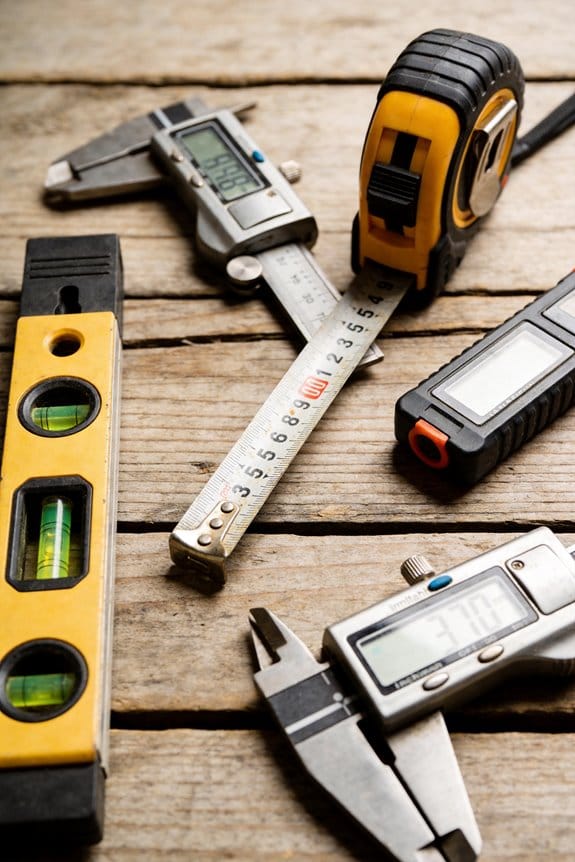

You’re staring at a model walkthrough, unsure why the fabricated duct clashes with the as-built ceiling by 12 millimetres. The exact question nagging you is: how precise do my model dimensions need to be to avoid shop rework, procurement errors, and failed clash checks?
Most teams assume “close enough” tolerances or treat level-of-detail labels as loose suggestions. This piece will show which LODs require millimetre accuracy, how contracts and export rules lock units and precision, and practical checks you can run so parts, hollow volumes, and automated clashes pass first time.
You’ll get clear specs and simple audits to reduce rework. It’s easier than it sounds.
Key Takeaways
If you’ve ever coordinated a BIM model across trades, this is why precise distances matter: they stop clashes before anyone sets foot on site.
- BIM coordination and clash detection require you to model distances within a few millimetres so trades don’t collide and you avoid costly change orders; for example, run clash checks at 5 mm tolerance between MEP ducts and structural beams and resolve any overlaps larger than 2 mm.
- When you use digital fabrication and integrate suppliers, give panels, modules, and prefabricated parts dimensions accurate to ±5–10 mm so shop drawings fit on first delivery; a curtain-wall fabricator I worked with rejected panels that were off by 12 mm and delayed installation two weeks.
- LOD-driven workflows tie procurement to geometry precision, so capture exact volumes at LOD 300+ for buy-and-build items; for instance, provide floor slab volumes to the nearest 0.01 m³ before ordering concrete.
- Automated takeoffs convert precise model areas into material volumes that cut contingency and waste; run automated area-to-volume scripts weekly and compare outputs to last purchase orders to spot discrepancies.
- Contracted data specs (PDTs, mvdXML, IDMs) and milestone audits force you to lock authoring/export tolerances before procurement, so set and record export tolerances (for example: 0.01 m for lengths, 0.001 m³ for volumes) at your milestones.
Why this matters: when you lock geometry to these tolerances, procurement, fabrication, and installation run on schedule.
Why Distance Precision Matters in BIM : The Short Answer
If you’ve ever tried to build from a fuzzy model, this is why.
Why it matters: precise distances keep your model useful from sketch to site. For example, if a wall is off by 50 mm on the model, a fit-out contractor might need extra framing pieces and order 10% more drywall than expected.
How precision helps you (one sentence): precise distances let you convert plan areas into usable volumes, estimate material needs, and plan installations with fewer surprises.
Real example: on a 2,000 m² office floor, getting slab-to-ceiling height wrong by 25 mm can mean ordering 200 linear metres of extra ductwork adapters.
Steps to keep distances tight
- Set tolerances early: choose +/- 5 mm for detailed design, +/- 25 mm for developed design.
- Model to the assembly size you actually build: use wall thicknesses and slab depths that match manufacturer specs.
- Validate with checks: run clash detection weekly and fix any collisions over 5 mm.
- Lock dimensions before procurement: freeze the parts list when tolerances meet your chosen limits.
Real example: an MEP team ran weekly clash checks and caught a 30 mm duct conflict before procurement; they avoided a $12,000 change order.
What goes wrong when you don’t maintain precision (one sentence): coarse distances make takeoffs and structural interfaces unreliable and force contractors into change orders.
Real example: a contractor received a model with room dimensions rounded to 100 mm and had to cut and recaulk 60 windows, costing two weeks of schedule.
How precision supports construction sequencing and procurement (one sentence): accurate sizes let you order the right number of components, plan lift sequences, and assemble on-site with confidence.
Steps you can follow
- Define the stage and its tolerance: schematic ±50–100 mm, developed ±25 mm, detailed ±5–10 mm.
- Annotate critical dimensions directly on model elements so fabricators see them.
- Use model-based quantities for orders and cross-check against 2D for long linear runs.
Real example: a facade supplier received model dimensions at ±5 mm and delivered panels that fit on first install, saving two crane days and about $8,000.
Practical tip: document one tolerance table per project and put it in the model’s root so everyone uses the same numbers.
Final takeaway: pick tolerances, check regularly, and lock dimensions before buying anything; you’ll cut surprises, change orders, and on-site rework.
How LOD Stages Translate Areas Into Distance and Volume Precision
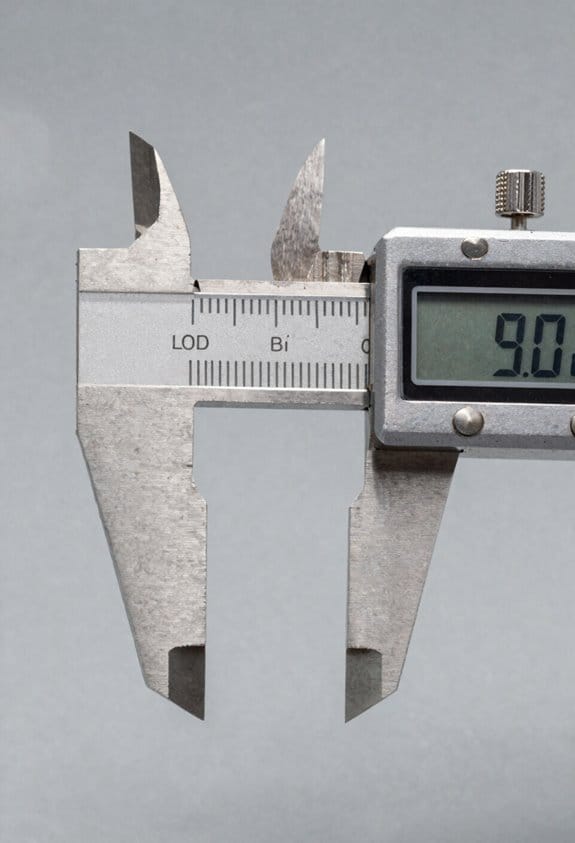
If you’ve ever tried to turn a design into a cost estimate, this is why.
Why this matters: getting LOD stages tied to area and volume precision saves you wasted materials and schedule surprises. Start by matching the kind of quantity you need — area, linear, or volume — to the model detail and the error you can tolerate, because that determines whether your model actually works for design, procurement, and construction.
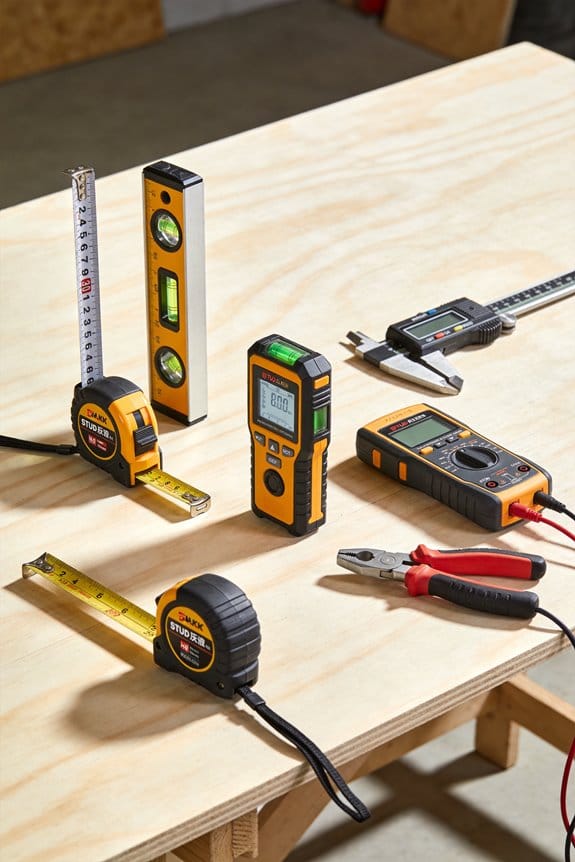
1) What does LOD 100 mean for area and early budgeting?
- Why it matters: at the start you need quick answers so you can set a realistic budget.
- How it looks: LOD 100 uses broad, conceptual areas with very rough geometry.
- Precision and rule of thumb: expect Area precision around +/-30%.
- Example: for a 10,000 ft² conceptual floor plan, assume area could be off by about 3,000 ft², so estimate materials accordingly.
- Quick step: when you prepare an early budget, multiply your conceptual area by 1.3 and by 0.7 to make high/low contingencies.
2) What changes at LOD 200 for shapes and structural volumes?
- Why it matters: you start defining shapes and basic systems so subcontractors can price work better.
- How it looks: LOD 200 refines footprints, adds wall thicknesses and introduces simple structural volumes.
- Precision and rule of thumb: tighten error to roughly +/-15% on areas and basic volumes.
- Example: a beam zone modeled as a 100 ft³ volume could vary by ±15 ft³, which affects concrete and rebar estimates.
- Quick step: for bids, give vendors the modeled volumes and a ±15% variance clause.
3) When does LOD 300+ give you measured volumes for takeoffs?
- Why it matters: you need numbers that let you order materials and schedule labor precisely.
- How it looks: at LOD 300 most elements carry measured, modeled volumes and defined geometry.
- Precision and rule of thumb: Volume precision moves toward about ±3–5%, good for accurate material takeoffs.
- Example: a modeled slab of 5,000 ft³ at LOD 300 will likely be within 150–250 ft³ of the built slab, which lets you order concrete batches confidently.
- Quick step: use LOD 300 volumes to create purchase orders and lock in sequencing.
4) What does LOD 500 mean for as-built accuracy and operations?
- Why it matters: you need exact as-built data for maintenance, compliance, and warranties.
- How it looks: LOD 500 records measured, as-built geometry and volumes.
- Precision and rule of thumb: return to effectively zero error for operational records.
- Example: an installed equipment enclosure recorded at LOD 500 matches the facility records within millimeters, so spare parts fit without modification.
- Quick step: verify LOD 500 volumes with field measurements and attach them to your asset-management system.
Final actionable checklist:
- Define which quantity you need (area, linear, or volume).
- Pick the LOD stage that matches your allowable error (100: ±30%, 200: ±15%, 300: ±3–5%, 500: as-built).
- Use the example calculations above to set contingencies and bid language.
- Validate modeled volumes with spot field checks before final procurement.
Follow those steps and you’ll reduce surprises, buy the right amounts, and keep construction moving.
Recommended Products
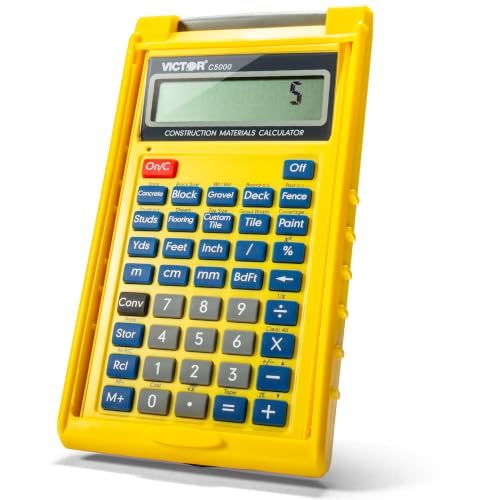

200+ Engineer Functions: For Mixed Dimension Calculations and Conversions,Area & Volume,Brick and Block,Concrete, Boards, Flooring, and Wall Stud,Drywall Sheet Count,Circle Area, Circumference, and Arc Properties,Compound Miter,Polygon Tiling,Roofing Material,Foundation Correction,Right Angle and Rafter,Roof Pitch and Angle Conversions,Common Rafter Length,Common/Hip/Jack Rafter and Spacing,Stair Layout,Rake Wall Calculations

Construction Calculator with Writing Tablet:Equipped with a flip-page writing pad for quick note-taking, it requires no paper or pen, making it both eco-friendly and convenient. The thick, phone-like material provides strong, phone-level protection, keeping your calculator safe from drops and harsh construction environments
Modeling Rules: When to Create IfcSpace, Hollow Volumes, and Exact Object Dimensions
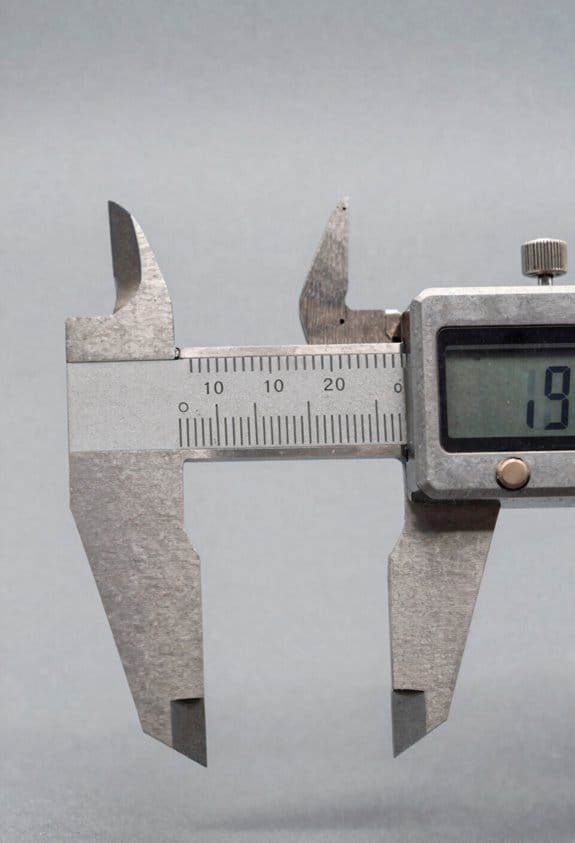
Here’s what actually happens when you decide when to place IfcSpace, model hollow volumes, and record exact object dimensions: your choices determine whether your BIM will give you accurate quantity takeoffs, useful clash detection, and reliable facilities management.
Why this matters: if you get the timing wrong, you’ll rework models and lose hours on site coordination. Example: on a 12-room hotel retrofit, placing IfcSpace late meant HVAC routes had to be redrawn twice.
When should you add IfcSpace?
Why it matters: IfcSpace creates room boundaries for services and schedules in your model.
- Stage rule: add IfcSpace at developed design (LOD 200) or when you can define room extents to within ±150 mm.
- What to include: room name, finished floor level, and gross internal area. Example: for a 4×3 m hotel room, record 12.00 m² and FFL elevation.
- How to check: run a room-area report and verify at least 90% of rooms match architectural plans.
Tip: start spaces when walls are modeled as single-line masses.
When should you model hollow volumes (voids, ducts, cavities)?
Why it matters: hollow volumes reserve space for services so clashes get caught before construction.
- Stage rule: begin hollow modeling at developed design (LOD 200) to reserve primary cavities, and refine at detailed design (LOD 300) to add wall and slab voids for exact volumes.
- What to model: main risers, shafts, large ducts, core voids larger than 0.05 m³. Example: model a 600×300 mm riser early as a reserved IfcOpeningElement.
- How to check: clash-check hollow volumes against major MEP trunks; aim for zero clashes on primary routes.
Note: don’t model every cable tray at LOD 200.
When should you capture exact object dimensions?
Why it matters: true geometry prevents on-site surprises for items that affect clashes or FM.
- Stage rule: capture exact dimensions at detailed design (LOD 300+) for any object that will be fabricated or impacts building systems.
- What to capture: fixings, prefabricated elements, equipment footprints, and anything ≥0.1 m in one dimension that could clash. Example: record a 2.4×0.9 m kitchen unit as exact geometry before procurement.
- How to check: export fabrication-level geometry for items to be manufactured and verify dimensions against manufacturer datasheets.
If an item won’t be purchased or clash-critical, use approximate geometry until needed.
Practical workflow — simple, documented steps
Why it matters: a clear workflow prevents guesswork across teams.
- Define LOD triggers: LOD 100 = massing only; LOD 200 = IfcSpace + hollow reserves; LOD 300+ = exact geometry.
- Assign responsibility: architect owns IfcSpace at LOD 200; services engineer owns hollow volumes initially; specialist suppliers provide LOD 400 geometry.
- Validate at milestones: run room-area, hollow-volume, and clash reports at each stage gate and record results in the project log. Example: require a zero-critical-clash report before issuing construction drawings.
Keep rules simple, document them, and validate against project LOD and use cases. Example: put the three rules above into a 1-page table in your BIM Execution Plan and require sign-off by discipline leads.
BIM Exchanges and Specs That Force Distance Precision (PDT, mvdXML, IDM, IDS)
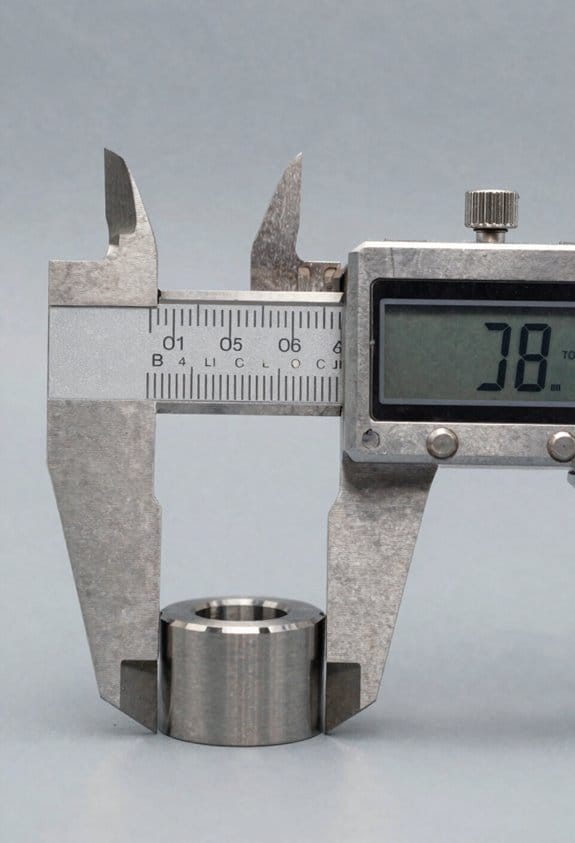
Here’s what actually happens when you must exchange geometry and quantities between teams: the contract and the exchange specs tell you exactly what to give, how precise it must be, and when to hand it over. This matters because if your model doesn’t meet those rules, you’ll get failed validations, disputed takeoffs, or rework that costs time and money.
Product Data Templates (PDT) say which properties you must include and which units to use, so you model distances and volumes to that precision. Example: a PDT might require “Length” in meters to three decimal places (0.001 m) and “GrossVolume” in cubic meters to two decimals (0.01 m3). What you’ll do:
- Open the PDT and note required properties and units.
- Set your authoring software’s unit display and export precision to match (e.g., 0.001 m).
- Re-run a sample export and check a few values against the PDT.
Model View Definitions (mvdXML) encode which IFC geometry and attributes are allowed in an exchange, so they determine whether your detailed solids, simplified extrusions, or just bounding boxes get transferred. Example: an mvdXML for structural framing might allow IfcExtrudedAreaSolid and require IfcLength attributes. What you’ll do:
- Load the mvdXML against your IFC export profile.
- Validate a model and capture the report of missing or disallowed geometry types.
- Fix the offending families or export options and repeat until the report is clean.
Information Delivery Manuals (IDM) map who delivers what and when, so they fix the timing and responsibility for quantities. Example: an IDM might require the structural engineer to deliver element-level volumes at initial design (RIBA Stage 3) and revised quantities at stage 4. What you’ll do:
- Read the IDM sections for your discipline and phase.
- Create a delivery schedule aligning your model freezes with the IDM dates.
- Assign owners for each property in your shared BIM execution plan.
Information Delivery Specifications (IDS) constrain IFC entities and properties for strict exchange validation, so an IDS can fail files that use wrong property names, units, or missing attributes. Example: an IDS validator rejecting IfcQuantityVolume with precision worse than 0.01 m3. What you’ll do:
- Run the IDS validator on your IFC before submission.
- Correct property definitions or add missing quantities in your authoring tool.
- Re-export and keep the validator pass report as evidence.
Follow these specs and you guarantee consistent, auditable quantity transfers. Example deliverable to keep with each exchange: a short CSV with element ID, property name, value, unit, and source file name — one row per required property so auditors can trace every number back to your model.
Tools and Checks You Can Use to Deliver and Verify Distance Precision Across Stages
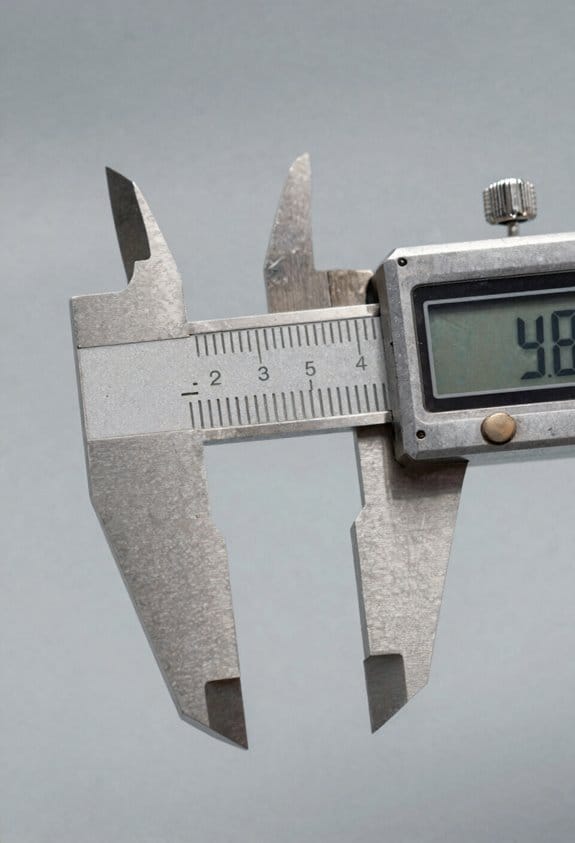
Think of precise distances like the ruler you bring to a jobsite: if it’s off by a few millimeters, quantities and clashes get wrong fast.
Why this matters: your model dimensions drive material orders and coordination, so mistakes cost time and money.
1) What tools you need and when
Why this matters: picking the right tool at each LOD keeps geometry matching intent.
Steps:
- LOD 100–200: use schematic dimensions in your authoring tool and enforce unit settings to millimeters or inches (pick one and lock it). Example: set Revit project units to mm with 0.5 mm display precision when you work on a hospital schematic.
- LOD 300: apply parametric families with locked critical dimensions and enable property checks that report length/area automatically.
- LOD 400–500: use supplier/spec families with manufacturer dimensions and attach certificate PDFs to the family properties.
Real-world example: on a university mechanical room, you’ll set LOD 300 duct runs with diameter and centerline offsets locked, then swap to manufacturer elbows at LOD 400 so bolt-hole patterns match procurement drawings.
2) How to verify distances at milestones
Why this matters: regular verification prevents small drifts becoming costly errors.
Steps:
- Run a measurement audit at each milestone (LOD 200, 300, 400, 500). Export a measurement report to CSV.
- Compare three sources: model dimension, design intent sketch, supplier data. Log deviations > 5 mm or > 0.2% as issues.
- Close the loop: assign fixes, update families, and rerun the audit.
Real-world example: after an LOD 300 review of a façade system, you’ll find a gasket depth off by 6 mm; you log it, update the family, and recheck the same locations.
3) Using laser scanning for existing sites
Why this matters: scans give the spatial truth you need to build accurate As-Built LOD 500 geometry.
Steps:
- Capture point cloud with target control and at least 6 mm native accuracy.
- Register scans to a common datum and clean noise; downsample to ~10–20 mm for modeling surfaces.
- Fit reliable meshes and model as-built components against the mesh, adding a tolerance field in the property set.
Real-world example: for a retrofit plant, you’ll scan piping, register to three control targets, generate a 15 mm mesh, and model pipe runs to within ±10 mm of the point cloud.
4) Automated checks and exchanges
Why this matters: automation catches unit errors and repeated regressions faster than manual checks.
Steps:
- Enable automated clash detection and schedule runs after each major change—daily for active design, weekly for stable phases.
- Maintain a unit-consistent property library and export using PDT or mvdXML to preserve numeric precision and metadata.
- After each exchange, run a regression script that verifies 10 key dimensions (corners, openings, critical offsets) against the previous snapshot.
Real-world example: during a multi-discipline coordination sprint, you’ll run clash checks every night and the regression script flags a Z-offset change of 12 mm in an equipment pad.
5) Logging deviations and locking precision
Why this matters: documented corrections stop regression and communicate what was fixed.
Steps:
- Record deviations in a tracker with location, measured value, allowed tolerance, owner, and due date.
- When a dimension is corrected, update the family/property and attach the audit CSV to the tracker.
- Freeze precision by tagging the model version as a control baseline; use that baseline for later regressions.
Real-world example: on a bridge project you log 22 deviations during LOD 500 assembly, assign them, and lock the baseline before fabrication.
Keep this simple: pick a unit, define tolerances (for building elements use ±5 mm; for heavy civil ±10–20 mm), run audits at milestones, and automate checks.
Recommended Products

Precision Measurement Set: This 2-piece ruler set includes one SAE ruler (6" x ½", 1/64" resolution) and one metric ruler (150mm x 12mm, ½ mm resolution), perfect for a wide range of precise measuring tasks
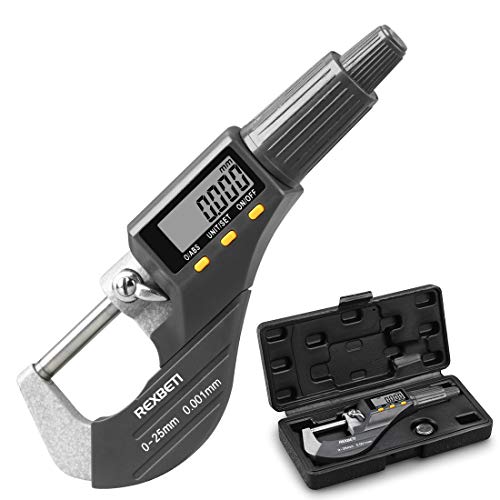
0-1" (0 to 25mm) digital micrometer with 0.00005"/0.001mm resolution and +/- 0.0001" accuracy
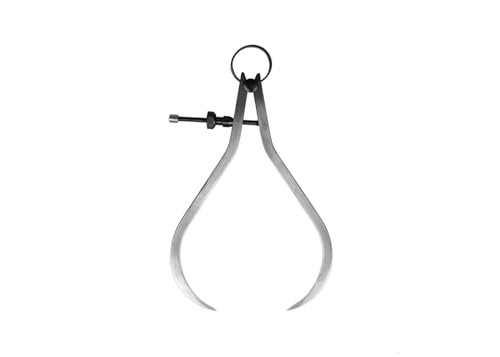
High Quality: PEC Steel Calipers are well-made, solid and durable, designed to last for generations.
Frequently Asked Questions
What Measurement Units Are Mandatory for International BIM Projects?
For international BIM projects I tell teams to mandate metric units (SI) for primary measurement and allow imperial units only as secondary references; project standards or client requirements may require both, with clear unit metadata and conversion controls.
How Do Tolerances Affect Prefabrication Workflows?
Think of a watchmaker aligning gears: I tell you manufacturing tolerances dictate fit and rework, and they force precise assembly sequencing; I can’t ignore tight tolerances or poor sequencing without causing delays, waste, and costly onsite adjustments.
Can Drones Provide Acceptable Accuracy for As-Built LOD 500?
No — I don’t think drones alone meet LOD 500 unless drone calibration and rigorous sensor fusion with control surveys, total stations or laser scanning are used, plus strict QA to achieve zero precision error.
Who Is Legally Responsible for Distance Data Errors?
Who’s liable? I am—well, usually the party contractually assigned liability allocation; I’ll still mock bureaucracy, but I’ll own data stewardship duties, unless contracts, standards, or law shift responsibility to another appointed professional.
How Are Privacy Concerns Handled in Detailed Spatial Scans?
I anonymize scans using anonymization protocols and enforce consent frameworks before capture; I strip identifiable geometry, blur faces/IDs, encrypt datasets, limit access, log usage, and retain only needed spatial detail while honoring withdrawal and retention policies.