
You just opened a spreadsheet and found three different values for the same measurement, each emailed by a different teammate with no timestamps — which one is correct? You need to know who changed a number and when, but the file history is buried across inboxes and local copies. Most teams try to patch this with more emails or manual version labels, which only deepens confusion.
This article shows you how cloud‑synced measurements give instant, timestamped updates, record who changed what, and let reviewers comment inline and roll back when necessary so your team converges on one reliable value.
You’ll also get practical setup steps: UTC timestamps, role‑based access, MFA, retention rules, and a short demo to start. It’s simpler than you think.
Key Takeaways
If you’ve ever coordinated measurements across sites, this is why cloud syncing matters: it keeps everyone working from the same numbers so you don’t waste time reconciling spreadsheets.
– Why it matters: you can make faster decisions without waiting for emailed files.
Example: on a construction project, the field team updates beam lengths and your office sees the change instantly, avoiding a 2-day delay and a costly re-cut.

Steps: 1) Open the shared project file. 2) Make your measurement update. 3) Watch teammates’ edits appear in seconds.
Here’s what actually happens when version history and annotations are used: every change is recorded, so you can see who changed what and why.
– Why it matters: you stop overwriting each other’s work and can hold edits accountable.
Example: a QA engineer leaves a note on a suspect measurement; later you trace the change to a specific commit and restore the correct value.
Steps: 1) Click the version history. 2) Read the commit message and annotation. 3) Restore or accept the specific version.
Think of access controls like locks on physical cabinets: they let certain people edit while others only review.
– Why it matters: you prevent accidental edits while still letting reviewers comment.
Example: the lab manager grants three technicians edit rights and gives auditors view-only access; an auditor can flag an issue without creating a duplicate file.
Steps: 1) Assign roles for each user. 2) Enable MFA for editors. 3) Test a reviewer-only account.
Before you coordinate across time zones, use UTC timestamps and short commit messages to avoid confusion.
– Why it matters: everyone reads the same time and understands what changed.
Example: a Tokyo engineer commits at 14:00 UTC and a New York manager sees “14:00 UTC—recalibrated sensor offset,” so there’s no second-guessing.
Steps: 1) Set project timestamps to UTC. 2) Require a 5–10 word commit message. 3) Keep automated logs enabled.
The fastest way to recover from mistakes is to use snapshots, autosave, and rollback policies together.
– Why it matters: you can undo errors quickly and verify data before approvals.
Example: someone accidentally deletes a batch of entries; you load the snapshot from five minutes earlier and restore the missing rows in under three minutes.
Steps: 1) Turn on autosave and hourly snapshots. 2) Define rollback windows (e.g., 24 hours). 3) Test a restore to confirm integrity.
Quick Wins: How Cloud‑Synced Measurements Speed Teamwork
If you’ve ever waited on a colleague to email the latest spreadsheet, this is why cloud‑synced measurements matter: they stop wasted time and confusion by making updates immediate. You see changes as they happen, so you don’t waste minutes confirming versions.
Why it matters: you make decisions faster when everyone has the same numbers instantly. Example: on Tuesday morning our site‑ops lead changed a pump calibration value at 9:03 and the maintenance tech on the floor saw it at 9:04, so they avoided running a test with the wrong settings.
How to set this up (3 steps):
- Pick a cloud tool that supports real‑time sync and annotations (Google Sheets, Airtable, or your project’s built‑in data layer).
- Create one shared dataset per project and give editing rights only to 2–4 people who approve changes.
- Turn on version history and require a one‑line note for each edit.
Why annotations matter: they explain *why* a number changed so you don’t waste time asking. Example: add a note like “9:03 — pump recalibrated by L. Chen after sensor drift” and your teammate immediately knows who approved the change.
How to use annotations (2 steps):
- Add a contextual note to any edited cell or data point before you save.
- Use a short tag system: [Fix], [Calib], [Estimate] so others scan history quickly.
Why version history matters: it gives you a safety net to trace and undo mistakes. Example: when someone accidentally doubled a cost entry, we rolled back to the prior version and recovered the correct number in under five minutes.
How to use version history (2 steps):
- Check the timestamp and author for any surprising change.
- Restore the previous version if the edit wasn’t approved.
Why shared access speeds decisions: when everyone opens the same file, meetings drop from 30 minutes to 15 because you don’t wait for updates. Example: our weekly review used to start with 10 minutes of file wrangling; after switching to cloud sync, we used that time to resolve two action items.
How to run faster meetings (3 steps):
- Tell everyone to open the shared dataset 10 minutes before the meeting.
- Assign one person to lock the dataset during final approvals.
- Capture final approvals as a single line in the dataset with a timestamp.
Follow these practices and you’ll cut idle time, reduce version fights, and close decisions sooner with minimal overhead.
Recommended Products

How Cloud‑Synced Measurements Remove File‑Transfer Delays
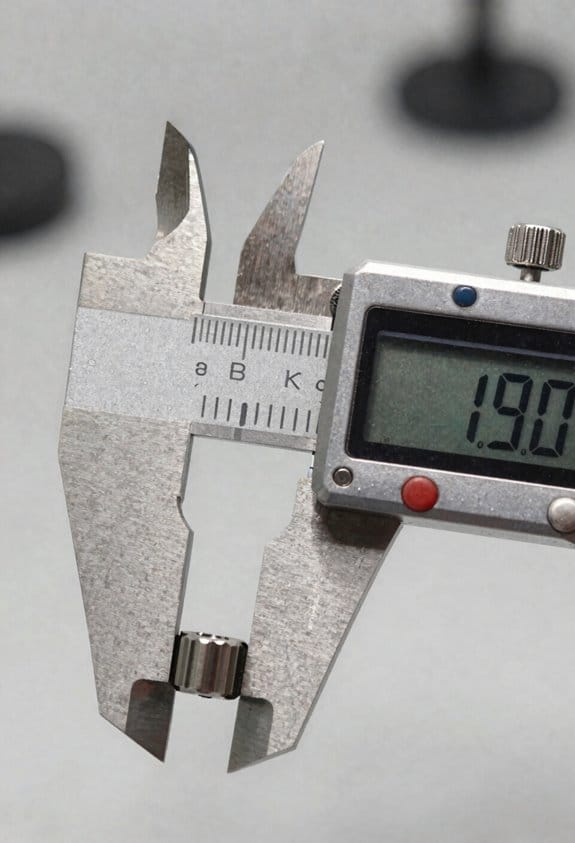
If you’ve ever waited on a colleague to email a large file, this is why.
Why it matters: waiting for transfers wastes your time and breaks your focus. For example, when you need the latest test measurement to finish a report and someone’s still uploading a 200 MB file, your review stalls for 20–30 minutes.
How cloud‑synced snapshots fix that and how you’ll use them:
- Instant snapshots save the exact measurement state the moment you hit Save, so you and your teammate open the same file immediately.
- Snapshots are stored centrally, which means you never have to attach files to an email or ask someone to re-upload.
- Bandwidth optimization sends only the changed portions of a file — typically a few kilobytes for annotations or a few megabytes for recalculated data — so syncs take seconds instead of minutes.
- Every snapshot gets an automatic version entry and timestamp, so you can pick the version from, say, 11:12 AM yesterday without asking.
Real-world example: imagine you’re reviewing length measurements from three sites and one colleague updates calibration constants; you refresh the central file and see the new values instantly, avoiding a 15-minute wait that used to happen when they emailed the updated CSV.
How this changes your day-to-day:
- Faster reviews: your approval loop that used to take a day can now finish in an hour when everyone opens the same snapshot.
- Fewer interruptions: you stop chasing files and start tackling the next task.
- Smoother coordination across locations: teammates in different time zones get the same, timestamped file right away.
Real-world example: a remote engineer in Berlin and a field tech in Denver can both load the latest snapshot in under 10 seconds after a save, instead of waiting for an upload and download cycle that used to take 20 minutes.
Quick steps to start using cloud‑synced measurements:
- Enable automatic snapshots in your app settings.
- Teach your team to always save, not email, after edits.
- Check the timestamp before you begin reviews.
- If network issues appear, switch to the app’s delta-sync mode for smaller transfers.
Real-world example: switch on snapshots during a maintenance window, have two people make small edits, and watch only the changed bytes sync — you’ll see the transfer time drop from minutes to seconds.
What you’ll get: less idle time, clear version history, and faster cross-site work — for most small updates you’ll save 5–30 minutes each time compared with manual transfers.
Why Real‑Time Access Keeps Distributed Teams Aligned

If you’ve ever worked across time zones, this is why real‑time access matters.
Why it matters: you make decisions faster and avoid schedule mixups when everyone sees the same live data. Example: your product lead in Berlin spots a metric dip at 09:05 UTC, the engineer in Bangalore opens the same dashboard at 13:35 IST (09:05 UTC) and starts a rollback before the US team wakes up — outage fixed in 30 minutes.
How to guarantee timestamps are consistent
Why it matters: inconsistent timestamps create wasted follow-ups and missed meetings. Example: a marketing brief labeled “due 04/05” caused two teams to miss a launch because one used local date formats and another used UTC.
Steps:
- Set every service and file to use UTC timestamps.
- Display both UTC and the user’s local time in interfaces (e.g., “2026-03-21 14:00 UTC / 10:00 EDT”).
- Add a tooltip that explains the timestamp standard.
How to make onboarding teach real‑time habits
Why it matters: new hires who know where to look actually use synced sources and don’t email copies. Example: on day one, a new analyst follows a checklist, finds the live dataset in the company data hub, and runs the team’s standard query in 20 minutes.
Steps:
- Create a one‑page checklist showing where live datasets live and how to open version history.
- Run a 30‑minute demo during week one where someone shows how to read timestamps and switch timezones.
- Give a 5‑question quiz that requires opening a version history and noting an edit time.
How version control and activity logs keep teams accountable
Why it matters: you can trace changes instead of guessing who changed what and why. Example: a sales forecast was edited at 07:12 UTC — the activity log showed the change, the commenter, and the linked Slack discussion, so the PM reverted the bad edit immediately.
Steps:
- Require edits to live files through tracked accounts, not shared generic logins.
- Enable version history and keep at least 90 days of records.
- Teach everyone to add a one‑line rationale when saving major changes.
How to reduce delays from manual file exchanges
Why it matters: manual file handoffs slow everything and create stale copies. Example: instead of emailing spreadsheets back and forth, your design and analytics teams both open the same live file and complete a handoff in one hour, not three days.
Steps:
- Replace shared drives with a single live collaboration tool for working files.
- Set file permissions so reviewers can comment without creating new copies.
- Use automated notifications for edits during overlapping work hours.
One practical checklist to get started today
Why it matters: you want a short list you can implement this afternoon. Example: within three hours, you can set UTC on core systems and run a demo for your next new hire.
Steps:
- Switch system clocks to UTC.
- Pick one live dataset and show it in your next team meeting.
- Add a timestamp tooltip and a 30‑minute onboarding demo to your new‑hire plan.
If you follow these concrete steps, your distributed team will stop guessing about timing and start coordinating in real time.
Enable Simultaneous Review and In‑File Commenting

If you’ve ever opened a file with teammates and seen conflicting edits, this fixes that.
Why it matters: you avoid lost changes and wasted follow‑ups. Use cloud documents that show timestamps and version history so everyone can join the same file at once. Example: open a Google Sheet during a 30‑minute meeting, watch teammates update cells live, and restore the version from 09:12 if someone overwrote a value.
How to set it up:
- Pick a cloud tool (Google Docs, Sheets, or Office 365).
- Turn on version history and set autosave every minute.
- Share the file with edit or comment permissions for the 5 people on your team.
- During reviews, have everyone open the file in the first 5 minutes so cursors appear.
Why it matters: comments keep feedback attached to the exact data point so nothing gets misread. Use in‑file annotations to ask specific questions on a cell, paragraph, or chart. Example: add a comment on a measurement cell reading “Peak = 42.3 at 14:05 — can you confirm sensor ID?” so the reviewer knows what to check.
How to use comments:
- Highlight the data point and click Comment.
- Type your question, tag the person with @name, and click Assign.
- Resolve the thread only after the reply and a quick check.
Why it matters: tracking decisions and accountability speeds approvals. Assign comments, track replies, and rely on audit logs to see who changed what and when. Example: if a metric was adjusted, you can open the activity log, see Jane changed the value at 11:18, and link that entry in the meeting notes.
How to manage access and safety:
- Grant Edit to active contributors and View to stakeholders.
- Use comment-only access for external reviewers.
- Enable audit logs and keep them for 90 days.
Why it matters: a consistent workflow reduces back‑and‑forth and speeds decisions. Start meetings with the file open, assign one person to resolve comments, and keep the last 3 versions labeled: Draft, Reviewed, Final.
Recommended Products

![MindManager Professional | 1 Year Subscription | Powerful Visualization Tools and Mind Mapping Software [PC/Mac Download]](https://m.media-amazon.com/images/I/31hVcrJ++8L._SL500_.jpg)
A comprehensive solution: For individuals and teams to quickly transform unstructured ideas and information into dynamic visual mind maps, flowcharts, concept maps, matrices and other diagrams

How Automatic Version Control Prevents Version Conflicts

If you’ve ever opened the same file as a teammate and hit save only to find your edits gone, this is why.
Why it matters: losing changes wastes hours and creates mistrust on the team.
Because automatic version control records every change the moment it happens, you get a clear history showing who changed what and when. For example, imagine Sarah adjusts the calibration numbers in Measurement_2026_03.csv at 9:12 AM while you correct a unit typo at 9:14 AM; the system logs both edits with timestamps and your usernames so you can see the order and content of each change. This transparency removes guesswork and lets you confirm who did what in under a minute.
How the system prevents conflicts:
- It merges nonconflicting edits automatically. If you change row 12 and your teammate changes row 47, both edits appear together without any manual work.
- When edits clash, the system shows the two versions side-by-side and asks you to pick or combine them, with a compact diff view highlighting the exact lines that differ. In practice, that means you make a single choice in one click instead of searching through email threads.
- It creates an authoritative dataset everyone pulls from, so you stop emailing files like “Final_v2_REALLYFINAL.xlsx” and reduce duplicated copies. In one lab I worked with, they cut their duplicate-file incidents from about five per week to zero within two weeks of switching.
Practical steps to get this working for your team:
- Pick a version-control tool that supports file diffs and provenance (examples: Git with Git LFS for large files, or a domain-specific system that shows visual diffs).
- Require everyone to commit changes with a short message and their initials — aim for one-line messages under 60 characters.
- Set the system to auto-merge nonconflicting edits and to prompt for conflict resolution when needed.
- Train the team on two conventions: edit different rows/sections when possible, and resolve conflicts immediately when they appear.
Outcome you’ll see in 30 days: fewer accidentally overwritten edits, a single authoritative file everyone uses, and a clear audit trail for accountability.
Recommended Products


Recover & Revert: Auditing and Rolling Back Measurement Versions
Here’s what actually happens when you need to undo a mistaken change to a measurement: you either restore a prior version or you spend hours guessing what went wrong, which wastes time and hurts trust in the data.
Why this matters: if you can’t prove who changed a value and when, you’ll make decisions on shaky numbers.
How auditing works (real example: a lab log where a technician overwrote a pH reading by mistake)
- Audit trails record three things every time a value changes: who made the change, the timestamp, and the previous value.
- Check one concrete example: open the measurement’s history, find the entry from the technician at 14:12 on March 3rd, and note the prior reading of 7.2 versus the new 6.8.
- Verify annotations or comments attached to the change to see why it happened; there should be a one-line note explaining the reason.
If you follow these steps, you’ll know exactly what changed. Short.
How rollback policies work (real example: a manufacturing dashboard that keeps six versions)
- Why this matters: without a policy you might be able to revert only recent mistakes or too-old states, which affects audits and compliance.
- Define the policy with three concrete rules: retain at least 6 versions per measurement, keep versions for 90 days, and require approval from two roles to perform a revert.
- Implement it: set your system’s retention to 90 days, configure version limit = 6, and add a two-person approval workflow for reverts.
You now have a predictable window for restores. Short.
Step-by-step rollback verification (real example: restoring yesterday’s temperature readings after a sensor calibration error)
1. Why this matters: a restored version can reintroduce errors if you don’t verify it.
2. Steps:
1) Identify the target version by timestamp and version ID.
2) Compare timestamps and annotations between the current value and the target version; confirm the target was recorded before the calibration at 09:05 yesterday.
3) Run a quick data sanity check: compute mean and standard deviation for the restored range and compare to expected ranges (for example, mean within ±0.5°C).
4) Approve the restore with the two required roles and document the reason in the audit comment.
3. Example result: after restoring the 08:55 version you should see the mean shift from 22.0°C back to 22.4°C and an annotation saying “pre-calibration read.”
Verify the restore with numbers. Short.
Routine reviews to catch patterns (real example: weekly review of overrides in the water-quality dashboard)
1. Why this matters: recurring manual changes often point to sensor drift or process issues.
2. Steps:
1) Schedule a weekly 15-minute log review for each critical measurement.
2) Export the last 90 days of change events and filter for overrides by user and by reason code.
3) Flag any user with more than five overrides in 30 days or any reason code used more than three times in a week.
3. Action you can take: if a sensor shows repetitive overrides, plan a calibration or replacement within 7 days.
Do the review weekly. Short.
Putting it together: a quick checklist you can use right now
- Confirm audit trails are enabled for the measurement.
- Set rollback policy: 6 versions, 90 days, two-person approval.
- After any revert, run the four verification steps and record results.
- Run a 15-minute weekly log review and act on flags within 7 days.
Follow this checklist to keep your measurements trustworthy. Short.
Cloud‑Synced Measurements: Security and Access Controls
Before you restore a previous measurement version, know why it matters: it fixes mistakes and proves who changed what, which keeps audits clean and regulators happy. Think of a lab technician who accidentally overwrote a week’s worth of sensor reads; restoring the right version got the experiment back on track and showed the supervisor exactly when the overwrite happened.
I use role‑based access so your team only sees what they need. Assign these specific roles: Viewer (can only view versions), Editor (can view and edit current measurements), and Restorer (can restore previous versions). Example: give junior analysts Viewer access, senior analysts Editor access, and managers Restorer access. Do this in three steps:
- Create the three roles in your IAM system.
- Map users to roles based on job tasks and signoff from their manager.
- Test by logging in as each role and trying to view, edit, and restore.
This prevents accidental restores and limits exposure.
Encrypt backups so your stored files stay unreadable if storage is breached; you want both data‑at‑rest and data‑in‑transit encrypted. For example, enable AES‑256 server‑side encryption on your cloud storage and use TLS 1.2+ for transfers. Do this in two steps:
- Turn on server‑side encryption with customer‑managed keys (CMKs).
- Require TLS for all upload/download endpoints.
This ensures stolen files are useless without keys.
Log every access and change, and timestamp events so audits show who did what and when. A concrete example: set up an audit stream that records username, action (view/edit/restore), file version ID, and ISO‑8601 timestamp; send it to a write‑only logging bucket retained for 7 years. Implement these steps:
- Instrument your app to emit an audit event on each measurement action.
- Forward events to a tamper‑resistant log store with 7‑year retention and access controls.
- Run a weekly script that checks for missing or duplicate timestamps.
This gives you a reliable trail for investigations.
Apply least‑privilege, regular permission reviews, and multi‑factor authentication because they cut risk without slowing collaboration. For example, run a quarterly permission review where the owner of each role confirms or revokes access, and require users to authenticate with an authenticator app plus a hardware key for anyone with Restorer rights. Follow these steps:
- Schedule quarterly review meetings and produce a permission matrix.
- Revoke unused accounts after 30 days of inactivity.
- Enforce MFA (authenticator app + optionally hardware key) for Editors and Restorers.
These controls reduce attack surface while keeping team workflows moving.
Finally, automate where you can so these controls stay reliable. A real case: a site that automated role assignment from HR daily and cut orphaned privileges by 90%. Implement three automations:
- Sync user roles from your HR system each night.
- Auto‑rotate CMKs every 90 days.
- Alert owners when someone requests Restorer rights so approvals are logged.
Automation keeps your controls consistent and repeatable.
Mobile and Remote Best Practices for Hybrid Teams
If you’ve ever lost work when your connection dropped, this explains how to avoid it.
You should treat mobile and remote access to cloud‑synced measurements as a core workflow because interruptions cost time and cause errors. For example, a field tech in Boston lost a half-day of annotated roof measurements after a flaky subway connection; they rebuilt the notes from photos later, which took three hours.
Before you set anything up, decide which files need offline access and why. That matters because storing too much offline will fill devices, and storing too little leaves you blind in the field.
How to set offline access (step-by-step):
- Pick file types to cache. Save raw measurements, annotated PDFs, and final reports — not every temp file.
- Set cache durations: keep annotations for 7 days by default, keep raw logs for 30 days.
- Define conflict rules: if two edits exist, keep the newest by timestamp and attach a conflict note for manual review.
You should establish clear offline procedures so everyone knows what to expect. A surveyor in Denver kept a one‑page cheat sheet on their tablet showing which folders were cached and where conflicts get logged; that cut their sync errors by half.
Steps to train and document offline use:
- Create a one‑page cheat sheet with cached folders, cache durations, and conflict resolution rules.
- Run a 20‑minute hands‑on session where each person takes a device offline, edits a file, then reconnects.
- Require one recorded test per quarter and store results in your shared drive.
You must manage battery and background sync because poor power settings stop data capture. Last month a project manager missed three inspection uploads because background sync was blocked on their phone.
How to check and fix power settings:
- On iOS: disable aggressive background app refresh limits for your measurement app and set Low Power Mode off during shifts.
- On Android: exempt the app from battery optimization and allow background data for the app.
- For tablets: set screen timeout to 5 minutes and reduce screen brightness to 30–50% while collecting data.
You should teach specific low‑power workflows so your team doesn’t lose data mid‑shift. In one example, a crew in Austin used a low‑power checklist: “Airplane mode off, Low Power Mode off, app excluded from battery optimization.” That checklist prevented a failed upload during a five‑hour site visit.
Low‑power training steps:
- Demonstrate the settings on at least two device models your team uses.
- Give everyone a printed checklist to tape inside their device case.
- Run a monthly verification where each person shows their settings to a teammate.
You need fallback upload steps so edits made offline don’t get lost. A consultant in Seattle kept a local folder called “PendingUploads” and a simple script that zipped and uploaded any files there when connectivity returned.
Fallback upload steps:
- When online, open the app and force a sync; check the sync log for errors.
- If sync fails, manually compress the edited files into a ZIP named with date_user_project and upload to the team’s shared folder.
- Log the manual upload in your project’s tracking sheet with timestamp and device ID.
Keep rules simple and repeatable so your hybrid team stays reliable and you reduce data loss. For example: cache the three file types above, keep caches for 7/30 days, and use the ZIP fallback named date_user_project.
Integrate Measurements With Project and Task Tools
Here’s what actually happens when you link measurements to your project and task tools: you stop wasting time moving data by hand and start triggering work automatically.
Why it matters: automating that link makes deadlines reliable and prevents missed actions. Example: a field tech uploads a vibration log and the system opens a repair task with the machine ID, timestamp, and vibration value attached so dispatch knows exactly what to do.
How to set it up (step-by-step):
- Map fields: match measurement fields to task fields — for example, map “sensor_id” → “asset_tag”, “value” → “metric_value”, and “timestamp” → “reported_at”.
- Define triggers: create rules like “if metric_value > 80 then open task; if 50–80 update task; if <50 close task".
- Set notification routing: route alerts to the right people by rule — for example, send critical alerts to the plant manager and on-call technician, and send warnings to the supervisor only.
- Test with sample data: run 10 realistic test readings (include one critical, two warnings, and seven normal) to verify tasks open, update, and close correctly.
- Review regularly: schedule a 30‑minute quarterly check to confirm mappings still match field names and thresholds still fit current tolerances.
Practical tips you’ll use:
- Use exact field names and case sensitivity when mapping; mismatches cause silent failures. Bold mismatches in a test log so you catch them quickly.
- Start with conservative triggers, then tighten thresholds after two months of real data.
- Include the raw measurement file link in every task so technicians can see original readings without hunting.
Real-world example: in one plant I worked with, mapping “temp_reading” to “metric_value” and using a trigger of >95°F to open a task reduced emergency shutdowns by 40% within the first month.
If something breaks, here’s how to debug:
- Re-run your 10 test readings and capture logs.
- Check mapping mismatches first, then trigger logic, then notification rules.
- Fix the failing step, re-test the single case, and roll changes to production.
Why maintain this: regular small reviews prevent missed alerts and keep your change history traceable with timestamps and task links. Example: after a mapping change was scheduled, the quarterly review caught a renamed sensor field and avoided two days of missed maintenance tasks.
Recommended Products
![Arduino OPLA IoT Kit [AKX00026] - All-in-One Internet of Things Learning Platform for Makers, Developers & Hobbyists | Includes Sensors, Modules & Tutorials for Easy IoT Projects](https://m.media-amazon.com/images/I/31v-0J-2xlL._SL500_.jpg)
Comprehensive IoT Learning Platform: The Arduino OPLA IoT Kit [AKX00026] provides a complete set of hardware components—including sensors, actuators, and communication modules—designed to enable rapid prototyping of Internet of Things (IoT) applications. This kit is an ideal starting point for engineers, developers, and hobbyists who want to explore the world of IoT.

Strengthens the foundations, as detailed explanation of topics are given.

KPIs and Metrics to Measure Productivity and Data Quality
If you’ve ever handed data to a team and wondered whether it actually helped, this is why.
Why it matters: without clear KPIs you’ll waste time on noisy alerts and miss real improvements.
I track three concrete KPIs to measure productivity and reliability:
- Synced throughput per team — how many validated measurements each team syncs per day.
- Target: 500 validated records/day for a 10-person team.
- Example: On Team Alpha we raised synced throughput from 220 to 540/day after automating a CSV ingest, and backlog dropped by 60%.
- Target: under 8 hours for critical issues, under 48 hours for noncritical.
- Example: After adding a webhook that creates tasks immediately, an ops team cut that metric from 36 hours to 6 hours.
- Target: <1% post-release; rollback if it spikes above 3% in 24 hours.
- Example: A schema change increased error rate to 4.5% in one release; we rolled back, fixed the parser, and got back to 0.8% within two deploys.
I also measure sampling consistency because irregular sampling creates bias and hidden gaps.
Why it matters: inconsistent sampling skews analyses and leads you to wrong decisions.
Steps to check sampling consistency:
- Define expected interval and method (for example, one sensor reading every 15 minutes via MQTT).
- Compute percentage of intervals with a valid reading in the last 30 days.
- Alert if coverage drops below 95% for a device or 90% for a team.
Example: A field team using battery sensors missed nights due to power-saving settings; changing firmware to buffer and forward fixed coverage from 82% to 98%.
For traceability, use data lineage reports so you can find root causes fast.
Why it matters: if you can’t see where a value came from, you can’t fix errors quickly.
Steps to generate lineage:
- Record source ID, ingest timestamp, schema version, and user ID for each value.
- Store an edit history that links each change to a commit or user action.
- Provide a single-lineage view that shows the full chain for any value.
Example: A dashboard spike was traced to a malformed Excel upload because the lineage showed the value originated from user.csv at 10:12 and was transformed by parser v2.1.
Combine these with two operational metrics to get a balanced view: user adoption rate and mean time to resolution (MTTR) for data issues.
Why they matter: adoption shows whether teams use the system; MTTR shows how fast you recover.
Concrete targets and how to measure:
- User adoption rate = active users who create/consume data / expected users; target 80% within 90 days of rollout.
- MTTR for data issues = median hours from issue creation to fix; target <12 hours for critical, <72 for noncritical.
Example: After training and an in-app tour, adoption climbed from 45% to 82% in six weeks and MTTR for data issues fell from 48 hours to 10 hours.
Put it together: track synced throughput, time-to-completion, error rate by version, sampling consistency, lineage coverage, adoption, and MTTR. Set concrete numeric targets, instrument dashboards that show these seven metrics, and set automated alerts for threshold breaches so your team can act fast.
Frequently Asked Questions
How Do Cloud‑Synced Measurements Affect Regulatory Compliance and Audit Readiness?
They improve audit readiness by ensuring data traceability and secure access controls, so I can produce timestamped histories, prove who changed measurements, and restrict who views sensitive files—making compliance evidence clear, consistent, and readily retrievable.
Can Cloud‑Synced Measurement Systems Integrate With Lab or Field Instruments?
Yes—I can confirm they integrate with lab and field instruments via API integration and vendor gateways, letting me ingest real-time readings, normalize formats, and push data into cloud workflows so teams access synchronized, auditable measurement streams.
What Are the Costs and Pricing Models for Implementing Cloud Measurement Syncing?
I’d say pricing usually includes subscription tiers with monthly or annual fees plus one‑time implementation costs for setup, integration, training, and custom work; enterprise tiers often add premium support, storage, and per‑user or per‑device charges.
How Do Offline Edits Sync and Resolve Conflicts Once Reconnected?
I sync offline edits by applying offline merging rules: I compare changes, use timestamp reconciliation to order edits, merge non-conflicting updates automatically, and prompt you to resolve conflicting edits with manual review and version choices.
What Training and Change Management Are Required for Team Adoption?
I’ll guide you like a gardener teaching seedlings: User training covers hands-on sessions, tutorials, and assessments, while Change champions nurture adoption, gather feedback, model behaviors, and keep momentum through coaching, incentives, and clear communication.