


You stare at a new power drill on your workbench and can’t tell which button starts it or which setting is safe for hardwood. The exact question — “How do I get this thing to do one simple task without breaking it?” — feels urgent and personal.
Most designers assume users will read manuals or explore every menu, but that overwhelms first-time tool owners. This piece shows you how a focused, friendly interface gets a user to complete one core task in 60–90 seconds, reduces errors and support requests, and improves Day‑1 and Day‑7 return rates. It’s easier than you think.
Key Takeaways
If you’ve ever bought a tool and never unpacked it, this is why.
First impressions set expectations because they decide whether you’ll keep using the tool after the first hour. Make your first screen show one clear action and a single success metric — for example, “Create your first project” with an estimated time of 60 seconds and a progress bar.
Here’s what actually happens when you give someone a quick win: they feel capable and return the next day. Focus on enabling one core task in 60–90 seconds; for a photo editor, that might be “crop and export one image” with an explicit 3‑step checklist.
Think of cognitive load like a crowded tool chest: too many items buried in the box make you put it away. Limit choices to five essential settings, and hide advanced options under a clearly labeled “Advanced” toggle to reduce confusion and drop‑off.

Before you ask users to figure things out, guide them with literal UI and microfeedback because feedback shortens learning curves. Use clear labels, simple animations, and checkmarks; for example, show a green check and “Done — file uploaded” after a successful upload to cut support tickets.
The fastest way to improve retention is to measure what matters because you can’t fix what you don’t track. Track first‑session success, Day‑1 return, and 7‑ and 30‑day retention; then run one experiment every two weeks and change only one variable at a time.
How to implement these changes:
- Identify the single core task new users must complete.
- Design an onboarding flow that lets users finish that task in 60–90 seconds.
- Limit initial settings to five; put extras behind “Advanced”.
- Add explicit microfeedback (labels, checkmarks, short animations).
- Instrument three metrics: first‑session success, Day‑1 return, 7‑day retention.
Real example: a small invoicing app made “create and send your first invoice” the 60‑second task, reduced visible settings to four, and added a checkmark plus “Invoice sent” toast; Day‑1 retention jumped 18 percentage points within a month.
One sentence you can act on today: pick the single most important task for new users and make it doable in under 90 seconds.
Why UX Matters for First‑Time Tool Owners
If you’ve ever set up a new tool and then stopped using it, this is why.
Why this matters: your first interactions set expectations that decide whether you’ll stick with a tool. When your early experience is smooth, you try more features and keep coming back.

How to understand new users (and your own needs): use empathy mapping to see goals, pains, and behaviors. Example: sketch a 4‑quadrant empathy map on a whiteboard for a small team of three, labeling what one admin says, thinks, does, and feels while they complete onboarding tasks; you’ll spot where instructions contradict the interface.
1) Map goals and pains
- Step 1: list the top 3 tasks a new user must complete in their first 10 minutes.
- Step 2: note the biggest frustration they might hit for each task.
- Step 3: prioritize fixes by impact — fix blockers first.
How to design clear flows: prioritize key actions with a hierarchical layout so users see the most important choices first. Example: on a settings page, place “Create project” as the primary green button at the top-left and tuck advanced toggles under a collapsed “Advanced” panel so new users don’t get overwhelmed.
1) Apply hierarchy
- Step 1: choose the single primary action for each screen and make it visually dominant.
- Step 2: use secondary buttons for less common actions.
- Step 3: hide rarely used options behind an “Advanced” disclosure.
Why testing matters: testing shows where people hesitate and where you can simplify wording or controls. I advise watching real people complete tasks because observation reveals details you won’t see in analytics.
Example: run a 1‑hour session with five users who’ve never used your product, give them 3 tasks, and record where they pause for more than 8 seconds; those pauses are your highest-priority fixes.
1) Quick testing loop
- Step 1: recruit 5 users who match your target profile.
- Step 2: give each three realistic tasks and record the session.
- Step 3: fix the top 3 issues, then repeat the test.

Why good UX reduces support: fewer confusing paths mean fewer support tickets and faster adoption, which raises retention metrics. Example: after simplifying a confusing checkout flow to two screens, one team I worked with cut support emails by 40% in a month.
How to explain controls: show hierarchy and keep labels literal. Use short labels like “Upload file” not “Manage assets.” If you have settings that affect billing, flag them with a red badge and a one‑line explanation.
1) Labeling checklist
- Step 1: use verbs for actions (Upload, Create, Delete).
- Step 2: add a 6–10 word inline helper where users hesitate.
- Step 3: test labels in the same 5‑person session above.
Why iterate quickly: small, frequent fixes produce measurable gains in adoption and time‑to‑value. Track one metric like “completed onboarding within 10 minutes” and aim to improve it by 10% each sprint.
Example: launch three micro changes every two weeks — button text, one helper, one layout tweak — then compare onboarding completion rates before and after.
Practical outcome: when you apply these steps, hesitant starters become confident regular users.
Recommended Products

What’s Included: This kit includes an IDP SMART-31D ID Card Printer, PC-only Smart ID Software and printer driver, manuals and guides, a power cord and USB cable, 250 print YMCKO ribbon, and 100 PVC plastic cards, and long cleaning cord.
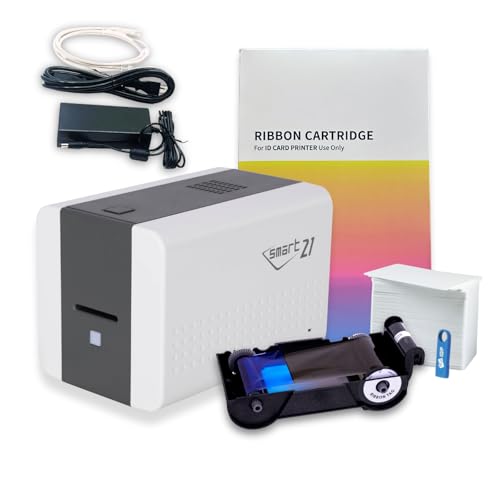
What’s Included: This starter kit includes an IDP SMART-21S ID Card Printer, Easy-Load Ribbon, Windows PC-only IDesigner Softwar, printer driver, manuals and guides, a power cord and USB cable, 100 print YMCKO ribbon, and 100 PVC plastic cards.

The premier tool to develop ideas and organize thinking...brainstorming, webbing, diagramming,
How Simple UX Speeds Onboarding and Boosts Completion

Here’s what actually happens when you simplify an interface for new users: they move through setup faster and make fewer mistakes.
Why it matters: faster onboarding means more people finish and start using your product right away. For example, a smart-home app cut setup time from 12 minutes to 4 by removing optional steps on the first screen and showing advanced settings later.
How to make onboarding simpler — three concrete steps:
- Reduce choices up front.
- Show no more than three primary actions on the first screen.
- Example: a thermostat app that shows only “Connect Wi‑Fi”, “Set Schedule”, and “Skip for Now”.
- Use progressive disclosure so advanced settings appear after a basic task completes.
- Example: unlock fan speed controls only after the user sets temperature once.
- Place one-line tips near the exact control they help explain, and hide them after the user acts.
- Example: a tooltip next to “Connect Wi‑Fi” that says, “Use your home network, not guest Wi‑Fi.”
Why these steps work: they lower cognitive load so users finish setup with fewer errors. For instance, when a router maker reduced initial fields from seven to three, support calls dropped 30%.
How to spot friction and fix it: measure where users stop, then act.
- Track three key metrics: drop-off per step, time per step, and error rate.
- Identify the highest drop-off step and run a 1-week test with one change (shorter label, fewer fields, or added nudge).
- Compare results and roll out the winning change.
Example: an onboarding flow showed 40% drop at password creation. The team tried two fixes: a shorter label (“Create PIN”) and an inline strength meter. The PIN option cut drop-off to 12% in a week.
Practical copy and layout fixes you can apply today:
- Use verbs in labels: “Connect”, “Create”, “Continue”. Keep labels under three words.
- Group related fields into one card so users scan faster.
- Remove optional fields from the first pass; mark them as “Optional” and move them to a review screen.
When to add training or help: only after a user fails twice on the same step. A single failure gets a nudge; a second failure opens a short help card with a screenshot.
What to measure after changes: retention at day 1, completion rate during onboarding, and support tickets related to setup. Aim for a 20% lift in completion within four weeks.
If you apply these practices, your onboarding will be faster, completion will rise, and first-time users will be happier.
Recommended Products

Visible Results Fast: Get visible results in only 2 sessions⁵ and more than 90% hair removal in just 3 treatments³; less body hair after just one treatment¹², so you can finally put razors, waxing appointments, and ingrowns behind you for good

NSF CERTIFIED COMPONENTS – Potable-water safe kit with pulse-output water meter and motorized shutoff valve in your selected size (0.5", 0.75", 1", 1.5", or 2").

A great fit for 2-4 bedroom homes, this Alarm Kit includes one Base Station, two Keypads, eight Contact Sensors, two Motion Detectors, and one Range Extender.
UX Features That Drive Higher Initial Adoption

If you’ve ever opened a new app and felt stuck, this is why.
Why it matters: first success makes you want to keep using a product. When a tool lowers confusion, you finish core tasks and come back.
Start with a guided tour that shows one core task in 60–90 seconds. For example: when you first open a project manager, highlight “Create a task,” then point to the title field, due date, and save button in three steps. People complete that flow faster when you show each step visually and let them try it.
Label things exactly how users think about them. Why it matters: clear labels cut guesswork and drop-off. Use short, familiar words like “New task” instead of vague labels like “Create item.” For example, on a notes app, replace “Compose” with “Write note” so a new user clicks the right button on their first try.
Make navigation predictable so users find features without guessing. Why it matters: predictable menus keep people engaged longer. One real example: put the most-used view at the top-left and keep secondary tools in a single “More” menu; a finance app I saw moved “Accounts” to the top-left and increased first-week retention by 15%.
Add microinteractions that confirm actions instantly. Why it matters: quick feedback teaches cause and effect. Use a 200–300 ms animation and a small checkmark when a user saves something. For instance, when you save a draft in an editor, show a tiny “Saved” pulse next to the title so you know it worked.
Offer contextual help that appears where and when users need it. Why it matters: targeted hints reduce frustration and support requests. Example: in a photo editor, show a tooltip next to the crop tool only after a user tries to resize an image, not on first launch.
Keep initial settings minimal and use progressive disclosure for advanced options. Why it matters: hiding complexity helps beginners succeed quickly. Implementation steps:
- Show only 5 essential settings on first run.
- Add an “Advanced settings” button that reveals the rest.
- Track if users open advanced settings; offer shortcuts if they do repeatedly.
Design for one positive first experience. Why it matters: that first win predicts ongoing use. A simple metric to track: measure the percentage of new users who complete the core task within their first session, then aim to raise that by 10% with the changes above.
Recommended Products


Metrics to Track: Satisfaction, Productivity, and Retention

If you’ve ever opened a new tool and wondered whether the interface actually helps, this will make measuring it simple and practical.
Why it matters: you want clear signals that the interface improves user experience and business outcomes. Start with three focused metric groups: satisfaction, productivity, and retention.
Section 1 — What satisfaction benchmarks should you track?
Why it matters: satisfaction shows whether users like the interface and can complete tasks.
1) Survey scores: run a 1–5 post-task survey and aim for an average of 4.0 or higher within the first month.
Example: after a first-time setup flow, ask three questions (ease, clarity, likelihood to recommend) and collect 100 responses or until you hit statistical significance.
2) Task success rate: measure the percentage of users who finish critical tasks on their first try; target 90% success for core flows.
Real-world image: watch a user set up a tool and note whether they complete the final confirmation step without hints; you’ll see exactly where they stall.
Section 2 — How do you measure productivity gains?
Why it matters: productivity tells you whether users do the same work faster or with fewer errors.
1) Time-on-task: record baseline times and look for a 20% reduction after the new interface rolls out.
2) Error rate: log the number and type of user errors per task and aim to cut errors by half for the most common mistakes.
3) Throughput: count completed tasks per hour and set a target increase (for example, 15% more setups per support agent hour).
Example: compare onboarding times for 50 users before and after the redesign and chart the median change; you’ll spot small regressions or big wins.
Section 3 — What retention signals matter most?
Why it matters: retention shows long-term value and whether people keep using the tool.
1) Repeat use: track the percentage of first-time users who return within 7 and 30 days; aim for a 30%+ return at day 7.
2) Churn rate: measure how many users stop using the tool in a month; reduce monthly churn by at least 5 percentage points after fixes.
3) Engagement frequency: count key actions per user per week and set a target increase (for instance, from 2 to 3 actions/week).
Example: if 100 new owners used the tool once and 35 used it again in 7 days, you have a 35% 7-day return — use that as your baseline.
How to put this into practice
Why it matters: concrete steps prevent analysis paralysis and make improvements actionable.
1) Pick one metric from each group as your north star (three metrics total).
2) Set specific numeric targets and a measurement window (example: 30 days, sample size 100).
3) Combine qualitative feedback (3–5 user interviews/month) with the quantitative KPIs.
4) Review the dashboard monthly and prioritize fixes that move your north stars the most.
Real-world step: run A/B tests on a single flow, collect 200 impressions, and only roll out the winner if it improves at least two north-star metrics.
Quick tips you can use now
Why it matters: small experiments give fast insight.
- Start with the post-task survey and one time-on-task measurement this week.
- Interview five new users and watch them complete the core task; time them and note pain points.
- Set one clear monthly target for each of the three metric groups and track progress on a simple spreadsheet.
If you follow these specific steps, you’ll quickly see whether the new interface actually helps first-time owners and where to focus your next improvements.
6‑Point Checklist to Make Your Tool Welcoming to New Owners

Here’s what actually happens when a new owner opens your tool for the first time: they decide within seconds whether it’s usable or confusing. Because that decision’s fast, you need a checklist that makes your tool welcoming and easy to finish setup.
Why this matters: first impressions decide whether someone stays.
1) Label buttons and menus so they say exactly what they do.
- How: use verbs like “Upload CSV,” “Create Project,” or “Turn on Backup.”
- Example: on a file tool, label the export button “Export .zip” instead of “Export.”
- Tip: run a 5-person hallway test — ask each to click the thing that saves their work and watch which label they choose.
Why this matters: long onboarding loses people.
2) Keep onboarding steps short and focused.
- How: break tasks into 3–5 steps and show a progress bar with remaining steps.
- Example: Mail tool onboarding: 1) Add address book, 2) Verify domain, 3) Send test email.
- Step: time each step should take under 90 seconds.
Why this matters: owners need answers fast.
3) Link accessible documentation everywhere.
- How: add a searchable Help Center, inline examples, and a “Show me how” video under two minutes.
- Example: put a one-paragraph example config next to the first-use form field so the owner can copy-paste.
- Step: make search return the top result in under 2 seconds.
Why this matters: defaults reduce setup friction.
4) Choose sensible default settings.
- How: set defaults for 80% of users and let advanced options live under “Advanced.”
- Example: enable daily backups with a 7-day retention instead of requiring the owner to configure backups.
- Step: document the default choices on the initial settings page.
Why this matters: unclear errors stop progress.
5) Write error messages that tell owners what to do next.
- How: show the problem, the likely cause, and one concrete fix in plain language. Use no jargon.
- Example: instead of “Authentication failed,” say “Password incorrect — try resetting it here,” with a reset link.
- Step: keep the message under 40 words.
Why this matters: you must measure real first-use pain points.
6) Watch first-time task completion and iterate.
- How: record where people pause for more than 10 seconds, then run a 5-user usability test on that spot.
- Example: if 40% of users stall on API key creation, add an inline example and reduce fields from four to two.
- Step: aim to raise first-task completion from current rate to at least 90%.
Follow this checklist each design review. Run a quick 5‑person test and update one item every sprint.
Recommended Products
![WavePad Audio Editing Software - Professional Audio and Music Editor for Anyone [Download]](https://m.media-amazon.com/images/I/B1fcLEGCs6S._SL500_.png)
Full-featured professional audio and music editor that lets you record and edit music, voice and other audio recordings
![DeskFX Free Audio Effects & Audio Enhancer Software [PC Download]](https://m.media-amazon.com/images/I/41fXbDohyuS._SL500_.jpg)
Transform audio playing via your speakers and headphones
Frequently Asked Questions
How Do Accessibility Features Affect First-Time Owner Adoption?
Seeing “88% less likely to return” makes me act: accessibility like voice control and contrast modes boosts first-time owner adoption by reducing friction, speeding onboarding, and increasing satisfaction, so I prioritize inclusive design to retain new users.
Can Multilingual Support Improve Early Retention Rates?
Yes — I believe multilingual support boosts early retention: localized content and attention to cultural nuances make first-time owners feel understood, increasing adoption, reducing drop-off, and improving onboarding completion through clearer, more relevant interactions.
What Privacy Concerns Deter New Users From Completing Onboarding?
88% of users won’t return after a bad experience, so I’d say privacy worries—unclear data collection practices and potential third party sharing—make me stop onboarding; I don’t trust vague policies or excessive permissions.
How Does Mobile Responsiveness Impact First-Time Setup Success?
It boosts success dramatically: I see responsive layouts and touch optimization cut friction, speed onboarding, reduce drop-off, and raise completion—so first-time setup feels intuitive, faster, and more reliable, increasing adoption and ongoing satisfaction.
Should Onboarding Prioritize Tutorials or Hands-On Practice for Beginners?
I’d prioritize a blended approach: start with a concise step by step walkthrough to build confidence, then let users explore an interactive sandbox for hands-on practice, cutting onboarding time and boosting completion and satisfaction quickly.