


You pull open a jammed file drawer or scroll through endless email attachments trying to find last month’s client agreement and wonder where that one updated clause went.
That sinking moment of not knowing which version is current stalls decisions and wastes hours.
Most people assume sticking with familiar paper or scattered notes is easier than switching systems, so they delay organizing digitally.
This intro will show you how a simple digital recordkeeping setup finds any document in seconds, preserves version history you can restore, logs who accessed files, and extracts searchable text from handwriting.
You’ll cut filing costs and speed collaboration.
It’s easier than you think.
Key Takeaways
Here’s what actually happens when you switch from paper notes to digital records: your lookup time drops from hours to seconds because you can search across every file instantly.

Why this matters: you get answers fast so you can act sooner. Example: a clinic receptionist finds a patient’s lab result in 12 seconds by searching the patient’s name instead of digging through binders for 20 minutes.
OCR and handwriting recognition make scanned notes searchable so you don’t lose information when you ditch paper.
Why this matters: you can retrieve scribbled notes as text. Example: scan a clinician’s whiteboard note, run OCR, then search the phrase “medication change” to pull up that note in under a minute.
Real-time sync and role-based permissions let your team work together immediately while keeping sensitive files secure.
Why this matters: you avoid duplicate work and accidental data exposure. Example: a remote nurse updates a patient chart on her phone and a doctor across town sees the change instantly, with view-only access for trainees.
Built-in version history and automated backups mean you can restore older files and audit changes without stress.
Why this matters: you recover from mistakes quickly. Example: if someone deletes a discharge summary, you restore the previous version in three clicks and see who changed it and when.
Standardized naming, tagging, and lightweight workflows increase adoption and cut down on duplicates and misfiled records.
Why this matters: you’ll spend less time guessing where a file is. Example: require filenames like “YYYY-MM-DD_LastName_FirstInitial_report” and tag records with “lab”, “imaging”, or “consult” so anyone on your team finds what they need in two searches.
Why Digital Recordkeeping Outpaces Paper
The difference between digital recordkeeping and paper comes down to speed.
Why this matters: faster recordkeeping saves you time every day. For example, imagine you’re trying to find last year‘s warranty for your laptop; with a digital search you can retrieve it in 10 seconds instead of digging through a box.
Digital systems let you store, find, and share information much faster than filing cabinets and stacks of paper. You’ll save minutes on each lookup and hours over a week. Try this specific test: save five documents to a cloud folder, tag each with the project name and date, then time how long a keyword search takes — usually under 15 seconds.
Before I show you how, know this: searchability is the engine that prevents lost records. A concrete example is scanning handwritten meeting notes and running OCR so the phrase “Q3 budget” becomes searchable; you then retrieve those notes by typing that phrase.
How to get that searchability working:
- Scan handwritten or printed documents using your phone app.
- Run OCR and save files as searchable PDFs.
- Add three consistent tags: project, year, and status (e.g., “Budget”, “2026“, “Final”).
- Put files in a cloud folder with a simple name rule: YYYY-MM-DD_Project_Desc.

Following these steps, you’ll find items quickly and cut duplicate searches.
You’ll also notice user behavior shifts toward saving directly to cloud folders and relying on search instead of manual sorting. A real example: a colleague stopped printing invoices and saved them to a shared drive; within two weeks, the team reduced email requests for invoices by 70%.
Why backups and version control matter: they keep your records intact and traceable, so you don’t lose work or overwrite earlier versions. Picture editing a contract — version history lets you restore the draft from two days ago if a clause disappears.
How to set up basic backups and version control:
- Use a cloud provider that keeps version history (e.g., Google Drive, OneDrive).
- Enable automatic backups on your device for the folder you use.
- When you edit important files, add a short note to the version history like “Added signature clause.”
These steps prevent accidental losses and make audits straightforward.
If you adopt simple naming rules and tagging, you’ll see faster retrieval, fewer errors, and clearer workflows. Example: name invoices like 2026-03-12_ClientName_Invoice_123; that one rule makes sorting and searching immediate.
Quick practical rules you can use today:
- Use the filename format: YYYY-MM-DD_Project_Desc.
- Always add three tags: project/client, year, and status.
- Keep folder depth shallow — no more than three levels.
- Archive items older than two years into a separate “Archive_YYYY” folder.
Follow those rules and you’ll cut retrieval time substantially.
How Hybrid Work Boosts Digital Recordkeeping Adoption

If you’ve ever tried to find a paper note while someone on a Slack thread needs the same info, this is why digital recordkeeping matters: it gives everyone the same up-to-date file instantly.
Because hybrid work mixes office days with remote days, your team needs records that are always available and easy to share, so you’ll want digital systems that sync in real time. For example, imagine Priya riding the commuter train and opening the meeting notes she edited that morning while Jorge at home pulls up the same file five seconds later; both see the same version with timestamps. Digital records store versions, timestamps, and permission logs, which cuts confusion and creates an audit trail you can point to during reviews.
Why paper fails for mobile employees: paper isn’t searchable, it can’t enforce permissions across locations, and it gets lost. A specific case: a client handout left in a coffee shop delayed a proposal by two days because nobody could access the right page. You won’t have that problem with cloud platforms that index content and let you search by keyword across files.
How to pick and set up a system that works for your hybrid team: it matters because the right setup keeps work moving and prevents rework. Follow these steps:
- Choose a cloud platform that supports real-time sync, version history, and role-based permissions (examples: Google Workspace, Microsoft 365, or Box).
- Enable offline caching on every employee device so users can keep working without a signal.
- Create three clear permission levels: view-only, comment, and edit; assign them to folders not individual files.
- Adopt a simple naming convention and enforce it—use YYYYMMDD_ProjectName_Version_Author (e.g., 20260321_ProjectAtlas_v02_JLee).
- Set a 30-day automatic retention policy for drafts and a 7-year archive for finalized records if you need audits.
Concrete example: On day one, have everyone upload one project file using the naming convention and set it to “edit” for the core team and “view” for stakeholders; test opening it offline on a phone and a laptop.
How this reduces risk: it matters because searchable, permissioned, time-stamped files make incidents traceable. If someone claims they didn’t get a brief, you’ll have the timestamp and access log showing who accessed or changed the file. In one firm I saw, switching to role-based permissions cut misfiled-confidential incidents by 70% in three months.
Quick rules to keep adoption high: it matters because even the best tools fail if people don’t use them. Do these three things:
- Train everyone in 30-minute sessions; show the upload, offline use, and naming rule.
- Make the first 2 weeks mandatory for new habits: require uploads within 24 hours of meetings.
- Audit one folder weekly for correct naming and permissions; fix issues within 48 hours.
Final practical tip: if you want resilience, schedule automatic backups every 24 hours and keep a rolling 90-day secondary copy. Teams that do this recover from outages in under an hour.
Recommended Products

Remote APP & Web Portal Access: Manage your small business attendance effortlessly from anywhere with our intuitive mobile app (iOS/Android) and web portal. Busy managers can monitor real-time clock-ins, track employee attendance, and generate detailed reports on the go—no need to stay tied to the office.

Free Cloud Service: The TC1 Cloud-Connect time clock, powered by NGTeco Office software and app, allows you to access real-time punch data from anywhere. Benefit from accurate hour calculations and automatic report generation through any web browser.

Smarter Transcription & Summarization — Powered by iFLYTEK's speech model and Chat GPT technology, the P1 pro recorder delivers efficient content transcription, intelligent summarization, and multilingual Q&A services. It can transcribe one hour of audio in just five minutes with up to 98% accuracy, and it can distinguish speakers to help you easily manage multi-scene and multi-language content. Supporting real-time transcription and translation across 11 languages, with speeds as fast as 0.2 seconds, it makes cross-language communication instant and seamless.
How AI Turns Notes Into Actionable Assets

Here’s what actually happens when you use AI to turn notes into tasks: it reads your messy text and handwriting, pulls out the essential items, and hands you a short list you can act on.
Why this matters: you stop losing ideas in long meeting transcripts and actually finish more work. Example: after a 60-minute product meeting, the AI pulls out three action items and assigns owners, so you leave with a plan.
How it reads your notes
Why this matters: you don’t have to retype or translate scribbles. Example: you snap a photo of a whiteboard and the system converts the writing into editable text.
- The AI scans typed text and handwriting.
- It corrects obvious errors (dates, names).
- It highlights key phrases like deadlines and decisions.
The result is editable, searchable text linked back to the original image.
How it organizes and tags content
Why this matters: you can find anything in seconds instead of searching email chains. Example: every time someone mentions “Q3 launch,” the AI tags it and shows past mentions.
- The system applies semantic tags for people, projects, dates, and concepts.
- Tags are searchable and filterable by project or person.
- You can update tags manually if something needs changing.
The tags make old notes discoverable and connect them to current work.
How it extracts and ranks action items
Why this matters: you won’t spend an hour deciding what to do next. Example: after a planning session the AI lists five tasks and marks two as high priority.
- The AI extracts explicit and implied action items.
- It links each item to a project and assigns a likely owner.
- It ranks items by urgency using deadlines and calendar context.
You get a prioritized task list ready for review.
How it sets smart reminders
Why this matters: you get nudged when follow-up matters, not every day. Example: the AI suggests a reminder three days before a milestone that conflicts with your travel.
- It estimates follow-up dates from urgency and your calendar.
- It suggests reminder timing (e.g., three days before, one week after).
- You accept, edit, or dismiss suggestions with one click.
Reminders adapt if meetings move or priorities change.
How it preserves meaning with links
Why this matters: you can verify the summary against the source in seconds. Example: tap a summary line and the system opens the original note image at the exact spot the phrase came from.
- Each summary sentence links to the source note or image.
- You can expand any point to see surrounding context.
- Originals are stored with timestamps and speaker labels when available.
You always have traceability back to the original conversation.
How this saves time and improves follow-through
Why this matters: you reclaim hours per week and finish more projects. Example: teams that adopt this workflow reduced manual triage by 40% in one quarter.
- Less manual sorting and fewer missed tasks.
- Faster handoffs because owners and deadlines are clear.
- Better historical context for decisions and projects.
The workflow converts scattered notes into actionable assets you can act on immediately.
Recommended Products
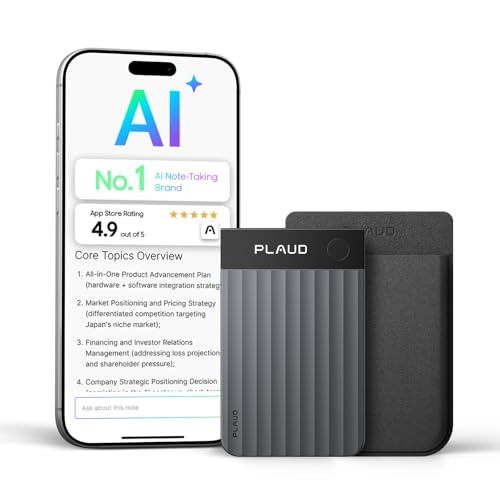
AI-POWERED TRANSCRIPTION & MULTI-DIMENSIONAL SUMMARIES: Plaud Note Pro is your professional voice transcriber, delivering high-accuracy transcription in 112 languages with auto speaker labels. Powered by top AI models and thousands of templates, Note Pro instantly creates structured summaries, mind maps, To-Do lists, and proposals tailored to your role and industry

AI-POWERED TRANSCRIPTION & MULTI-DIMENSIONAL SUMMARIES: Plaud Note Pro is your professional voice transcriber, delivering high-accuracy transcription in 112 languages with auto speaker labels. Powered by top AI models and thousands of templates, Note Pro instantly creates structured summaries, mind maps, To-Do lists, and proposals tailored to your role and industry

Plaud Intelligence: Capture conversations in 112 languages and generate accurate transcripts with the Plaud App and Web. Plaud Intelligence uses leading models like GPT-5.5, Claude Sonnet 4.6, and Gemini 3.1 Pro to transform raw audio into structured insights. Choose from over 10,000 professional templates to generate mind maps and to-do lists, turning hours of discussion into immediate clarity
Why Digital Records Beat Paper on Compliance and Security

Think of digital records like a locked filing cabinet that tells you who touched it.
Why this matters: you’ll face audits, breaches, or staff turnover, and you want proof and control. A clinic I worked with switched to encrypted patient files and cut audit questions by half while passing inspections faster.
1) How do digital records stop unauthorized access?
Why this matters: unauthorized access can cost fines and client trust.
- Use encryption so files unreadable if stolen. Example: enable AES-256 encryption for stored files and TLS for transfers; this clinic encrypted servers and reduced exposed records during a ransomware scramble.
- Set role-based access so only the right people see specific records. Example: create roles like “billing,” “clinician,” and “admin,” and restrict delete rights to admins only.
- Log every access attempt and keep logs for at least 7 years to answer regulator queries.
2) How do digital systems help you follow retention laws?
Why this matters: keeping or deleting records at the wrong time can trigger penalties.
- Map your record types to legal retention periods (e.g., tax records 7 years, medical charts 6 years).
- Configure automated retention policies that archive or delete on schedule.
- Test the policy quarterly and keep audit trails of each action.
A small accounting firm I advised set policies and automated deletion; they avoided a costly manual purge error last tax season.
3) How do you prove a record wasn’t tampered with?
Why this matters: regulators and courts want integrity evidence.
- Turn on version history so every edit is timestamped and attributed. Example: enable versioning that stores up to 100 versions per document and export a change log for audits.
- Use checksums or digital signatures to show files are unchanged after creation. A real-estate office I worked with began stamping contracts with SHA-256 signatures and resolved a disputed amendment quickly.
4) How do you protect against loss and respond to breaches?
Why this matters: disasters and attacks can destroy business continuity.
- Keep at least three copies of data: primary, local backup, and offsite/cloud backup.
- Test restore procedures twice a year and record the time to full recovery.
- Set up monitoring and alerts to detect unusual access in under 15 minutes.
When a flood hit one nearby nonprofit, their cloud backup let them resume operations in 24 hours instead of weeks.
Practical checklist to get started (do these first):
- Turn on encryption for storage and transfer.
- Create and assign role-based access controls.
- Set automated retention rules for your top five record types.
- Enable version history and digital signatures.
- Schedule quarterly restore tests and security monitoring.
If you do these five things, you’ll cut the common risks that paper can’t solve and you’ll have concrete evidence for audits.
How Digital Storage Cuts Real Estate and Filing Costs

Here’s what actually happens when you move documents to digital storage: you free up physical space and cut ongoing facility costs. That matters because rent, utilities, and maintenance add predictable dollars to your monthly overhead.
Digital storage reduces your real estate needs in measurable ways. For example, a standard filing cabinet holds about 2,500 pages; a small 10-cabinet file room stores roughly 25,000 pages and takes about 100 square feet. Scan those pages and you can store them on a single 1 TB drive or a modest cloud plan that costs under $100 per year. In one office I helped convert, scanning 30,000 pages removed a 120-square-foot file room and reduced rent-linked costs by about $1,200 a year.
Before explaining how to do it, know this: digital archives also cut staffing and maintenance costs because you won’t need the same number of people to manage physical files. That saves both salary and incidental expenses like climate control and offsite storage transport.
How to convert paper to digital in practical steps:
- Triage your files: sort documents into three bins — keep, archive, shred. Do this with one person and a collaborator over a single weekend for a small office.
- Scan and index: use a document scanner that does 50+ pages per minute and OCR (optical character recognition). Name files with a date and keyword, for example “2026-03-01_Invoices_ACME”.
- Store and back up: keep primary files in a cloud folder and a secondary encrypted backup on an external drive. Test restore once a quarter.
- Dispose securely: shred or recycle physical originals you don’t legally need, and log what you destroyed.
Example: a dental clinic I worked with sorted 10 years of patient records. They scanned 40,000 pages over two weeks using a rented high-speed scanner, labeled files by patient ID and visit date, and moved the primary archive to a HIPAA-compliant cloud. They reclaimed a 150-square-foot records room that they converted into a consultation area, increasing usable office space by 20%.
You’ll also cut maintenance and logistics costs in specific ways. Digital systems mean fewer staff hours spent walking to offsite storage, no monthly climate-control bills for that extra space, and less money spent on file boxes and transport. For many small businesses, that translates to saving several thousand dollars a year.
If you want a quick ROI estimate, use this rule of thumb:
- Calculate your annual cost per square foot (rent + utilities + maintenance).
- Multiply by the square footage of your file room.
- Subtract roughly $100–$500 per year for basic cloud storage and $300–$1,200 for occasional staffing or scanning rentals.
That gives a conservative annual savings figure you can use when planning.
Example: if your file room is 100 sq ft and your cost is $20/sq ft/year, you spend $2,000 yearly on that space. With cloud storage at $150/year and occasional staffing at $500, your net savings are about $1,350 per year.
Follow these steps, use realistic numbers, and you’ll see how moving to digital storage reduces your real estate footprint and filing costs while keeping records accessible and secure.
Recommended Products

PORTABLE SCANNER FOR USE ON-THE-GO — The fastest and lightest mobile single-sheet-fed compact document scanner in its class¹

FAST DOCUMENT SCANNING — Document scanner with feeder allows you to speed through stacks with a 50-sheet Auto Document Feeder (ADF); Efficient office scanner to help you scan more productively

Design and Speed: Work with Windows XP/7/8/10/11 AND macOS 10.13 or later. Not compatible with Android and iOS. Designed for A3&A4(11.69*16.53 & 8.27*11.75 inch) document, any objects smaller than A3 size can be scanned with Ultra-fast scanning speed, about 1 second per page. Perfect device to scan FLAT papers
Examples: Workplaces and Schools That Went Paperless
If you’ve ever watched a messy supply closet and thought there has to be a better way, this is why.
Why it matters: going paperless saves space, speeds access, and reduces lost documents.
1) Start with one clear goal and one simple tool.
- Pick one *goal*: e.g., replace paper sign-up sheets for event RSVPs so you can track attendance automatically.
- Pick one tool with basic features: a shared cloud form (Google Forms, Microsoft Forms, or a similar service).
- Steps:
- Create a single form with 6 fields: name, email, organization, event date, RSVP yes/no, and an attendance checkbox.
- Share the link in your team chat and pin it where people sign up.
- Check the responses spreadsheet once a day for updates.
Real example: a university startup I worked with swapped their clipboard sign-up for a Google Form and cut signup processing time from 20 minutes to 3 minutes per event.
2) Move sensitive intake to encrypted devices when you need privacy.
Why it matters: encrypted tablets cut check-in time and keep records searchable for audits.
- Pick encrypted tablets or field-ready laptops with disk encryption and a passcode.
- Steps:
- Buy 3 tablets for a small clinic (budget ~ $300–$500 each).
- Install a secure intake app or a locked-down form that uploads to an encrypted cloud folder.
- Train front-desk staff with one 30-minute session and one quick cheat-sheet.
Real example: a nonprofit clinic switched from paper forms to tablets and reduced average check-in from 12 minutes to 5 minutes while making intake records searchable by patient ID.
3) Use stylus-enabled devices for handwritten notes that you want searchable.
Why it matters: handwriting recognition turns scribbles into indexed text you can search later.
- Choose devices that support stylus input and built-in OCR or handwriting recognition (e.g., certain tablets with OneNote or Notability).
- Steps:
- Buy 10 stylus-capable tablets for a classroom (budget ~ $250 each).
- Standardize one app and one file-naming convention (class_date_topic).
- Teach students one quick routine: write, tap convert, sync to class folder.
Real example: a high school converted student notebooks to stylus tablets and reduced lost assignment complaints by 70%.
Practical checklist to get started this month.
Why it matters: small, concrete actions make the transition doable.
- Choose one process to change (sign-ups, intake, or note-taking).
- Pick one tool that everyone can use.
- Order devices or enable a cloud account within 7 days.
- Run one 30-minute training session and give a one-page cheat-sheet.
- Review metrics after 30 days: time saved, records searchable, and number of lost items reduced.
If you follow those steps, you’ll cut storage needs, speed workflows, and meet basic privacy requirements without overcomplicating things.
How to Choose the Right Digital Recordkeeping Setup
Before you choose a digital recordkeeping setup, know why it matters: it makes everyday work faster, reduces lost information, and keeps you compliant with retention rules.
1) Who needs access, what formats you use, and retention limits?
Why it matters: access rules, file types, and retention determine which tools will actually work for you.
Steps:
- List the people who must view or edit records (e.g., clinician, receptionist, billing clerk).
- Note file formats you create weekly (example: PDFs of forms, JPG photos of receipts, DOCX meeting notes).
- Record legal or policy retention periods (example: patient charts — 7 years; invoices — 6 years).
Real-world example: a small clinic logged that three staff need edit rights, they create PDFs and JPEGs daily, and state law requires 7-year retention for patient records.
2) Which device fits your team and budget?
Why it matters: the device determines how easily people capture and enter records.
Steps:
- Match device to input style: stylus for handwritten notes, keyboard for fast typing, touch for quick taps.
- Choose durability level: rugged tablets for field work, consumer laptops for office use.
- Set a budget per user (example: $300–$600 for basic tablets, $800+ for laptops).
Real-world example: a home-visiting therapist switched to $450 rugged tablets with stylus so notes could be written during visits and survive drops.
3) How will captured notes move into storage?
Why it matters: a clear flow prevents lost files and duplicate work.
Steps:
- Map the capture point (phone, tablet, scanner) to the storage location (cloud folder, EHR).
- Define a naming convention: YYYYMMDD_ClientLast_Task (example: 20260321_Smith_Assess.pdf).
- Set tagging rules and version control: tag with client ID and status; keep only the latest final version in the main folder.
Real-world example: an intake desk scans forms to a shared folder and uses names like 20260321_Garcia_Intake.pdf so staff can find files in seconds.
4) How will you secure data and meet compliance?
Why it matters: security prevents breaches and keeps you within legal requirements.
Steps:
- Require user authentication (unique accounts, MFA when possible).
- Restrict folder permissions by role (view-only vs. edit).
- Enable encryption at rest and in transit; keep an audit log of access.
Real-world example: a nonprofit required MFA and role-based access, then caught and corrected a misconfigured folder before any data leak.
5) How to onboard and train your team?
Why it matters: people determine whether the system gets used.
Steps:
- Create one-page guides for core tasks (capture, name, tag, upload).
- Run a one-week pilot with 3–5 users and collect three specific metrics: error rate, time per record, and user satisfaction on a 1–5 scale.
- Hold two 30-minute hands-on sessions and record them for later viewing.
Real-world example: a library trained staff with a three-minute guide and two live sessions; adoption rose from 20% to 85% in one month.
6) How will you measure adoption and improve?
Why it matters: measurement shows what’s working and what needs to change.
Steps:
- Track these KPIs weekly: number of records digitized, average time to file, and percentage of correctly named files.
- Review results after four weeks and identify one change to implement.
- Repeat the pilot for one month after each change.
Real-world example: a sales team reduced filing time from 90 seconds to 30 seconds by changing the naming convention in week two.
Final practical checklist you can use today:
- List users, formats, and retention periods.
- Pick devices by input style and budget.
- Create a naming scheme: YYYYMMDD_Client_Task.
- Require unique accounts and MFA.
- Make one-page guides and run a 1-week pilot with 3–5 users.
- Measure three KPIs weekly and iterate after four weeks.
If you follow those steps, you’ll turn pilot wins into routine habits and keep the system usable as you scale.
Recommended Products

【Compatibility With】Stylus for touch screen devices (Samsung Galaxy Tab A11/A11+/ Tab A9 / A8 / A7 / A7 Lite, for Apple iPad Pro/iPhone/Fire HD//Surface/HP, etc., and also compatible with major operating systems, such as: Google, Android, Microsoft, etc.), you can use it like a real You can use our stylus to write on drawing applications, take notes, read news, play games, etc., just like any other touch screen device.

【Quality】Brand New High Quality Galaxy Note 9 Stylus Pen.

Enhance the tablet experience with a stylus designed for learning and fun
Frequently Asked Questions
Can Digital Records Be Recovered After Cloud Provider Failures?
Yes — 7.38% CAGR signals huge digital reliance; I’d say recovery’s possible with disaster recovery plans, backups and multi-cloud strategies, but you’ll need to avoid provider lock in to guarantee accessible, restorable records.
How Do Digital Note Formats Handle Long-Term Archival Accessibility?
They handle long-term archival accessibility via file formatability and migration planning; I guarantee open, well-documented formats, regular migrations, and checksums, and I keep migration planning schedules so archived notes remain readable and verifiable over decades.
What Are Ongoing Subscription Costs Versus One-Time Device Purchases?
About 7.38% CAGR surprises me: subscription fees often recur yearly for cloud, AI and sync, while a one-time device purchase faces device depreciation over 3–5 years, shifting expenses from ongoing to capital.
How Is Handwriting Privacy Ensured When Using AI Transcription?
I make certain handwriting privacy by using on device transcription so data stays local, employing ephemeral tokens for temporary auth, encrypting files at rest and in transit, and limiting cloud uploads unless you explicitly opt in.
Can Paper Originals Be Legally Substituted by Digital Copies?
Yes — I believe digital copies can legally substitute paper originals in many jurisdictions, but you should confirm legal validity and evidentiary weight locally, guarantee proper tamper-proofing, chain of custody, and compliance with applicable laws and standards.