

You’re at final assembly and a part won’t fit even though every drawing matches — did someone switch inches and millimeters?
Two emails, one controller screen, and a flagged CAD file later you still don’t know whether the mismatch came from rounded conversions, stored units, or a mislabeled export.
Most teams treat unit switching as a convenience and assume software or operators will catch small offsets.
This article shows exactly how to lock units across machines, drawings, and controllers, enforce the 1 in = 25.4 mm conversion without rounding errors, and set up logging and handover checks so parts stay in tolerance.
Follow these steps and prevent hidden, expensive rework.
It’s easier than it seems.
Key Takeaways
If you’ve ever misread a unit on a screen, this is why it matters: unit switches create conversion and rounding errors that can push a 50 mm part beyond its 0.1 mm tolerance, causing scrap or a failed assembly. For example, a CNC operator who inputs 2.0 inches when the program expects 50.8 mm can produce a hole off by 0.8 mm—enough to fail a fit check.

Before you automate, know that mismatched controller and storage units change offsets and make errors stack up over runs. In one shop, a controller saved offsets in inches while the PLC logged in millimeters; after 200 parts the cumulative position error reached 5 mm and ruined a batch.
Why you should fix human handoffs: people misread displays, type numbers in the wrong format, and forget which unit was used during shift changes. A visual example is a maintenance board showing “10” with no units; the day shift assumes mm, the night shift assumes inches, and the first work order breaks a fixture.
How to prevent mixed-unit confusion across global teams: document owners, use templates, and add one-line unit labels so everyone uses the same baseline. Steps you can follow:
- Assign one unit owner per product line and list them on the drawing header.
- Publish a template with units locked and a bold unit label in the title block.
- Add a one-line unit label near critical dimensions, e.g., “DIMENSIONS IN mm” in 12-point font.
Before you change software, use typed unit libraries, automated conversions, and machine-mode locks to cut software and operator errors. Example: configure your CAD/CAM to accept only typed units, enable automatic conversion to the machine’s native units, and lock the machine mode during setup; this reduced unit-related stops from weekly to monthly in one plant.
Why this all matters in one sentence: preventing unit errors saves parts, time, and warranty costs.
Importance of Metric–Imperial Switching in Global Workflows
If you’ve ever mixed units on a job, this is why.
Why it matters: when your documents mix metric and imperial, people stop and convert numbers, and that stalls work. For example, on a sheet metal job where drawings showed holes in inches but tooling lists used millimeters, a fitter spent 45 minutes recalculating hole centers and drilling the wrong pattern on the first panel.
Make machine and storage systems show the active system clearly. Put a 3-inch laminated label on each CNC and on racks: “UNITS: METRIC (mm)” or “UNITS: IMPERIAL (in)”. On a production line I helped set up, switching to those labels cut mistaken setups from four per week to one per week.
Before you train people, explain the practical differences so they know when to switch and why it matters. Tell them that newer CNCs often step in 0.01 mm increments, while imperial setups might use 0.001 in steps, and show one sample part so they can see how tolerance stacks change. In one shop, showing a physical sample part with a 0.5 mm vs 0.020 in offset stopped a lot of rework.
How to give clear training:
- Show one quick demo (5 minutes) of switching a machine from mm to in, including checking the display and resetting offsets.
- Give each operator a one-page cheat sheet with three checks: display units, tool offsets, and input format (comma vs period).
- Run a 15-minute refresher every month for the first three months after a change.
Make your tools toggle units instantly. Use software or control panels that convert fields on the fly so a value like “25.4” becomes “1.0 in” automatically, and disable free-text entry where possible. In an electronics assembly line, switching solder paste volumes between mm3 and in3 with a toggle prevented 20% over- or under-application errors.
Label all inputs and documents with the unit and precision you expect. Put a unit line on templates and forms: “Length (mm) — one decimal.” On a contractor’s job folder, adding that line eliminated a contractor’s misread that once caused a 100 mm piping mismatch.
Make displays consistent across systems and back them up with signage and regular practice. If every control panel shows the same unit abbreviation in the same place and supervisors check it at shift handover, you’ll see fewer mistakes and faster setups. One plant I worked with measured a 30% drop in setup time after standardizing displays and adding a 60-second unit check to handovers.
How Unit Mix-Ups Cause Real Failures : Manufacturing, Aerospace, Healthcare
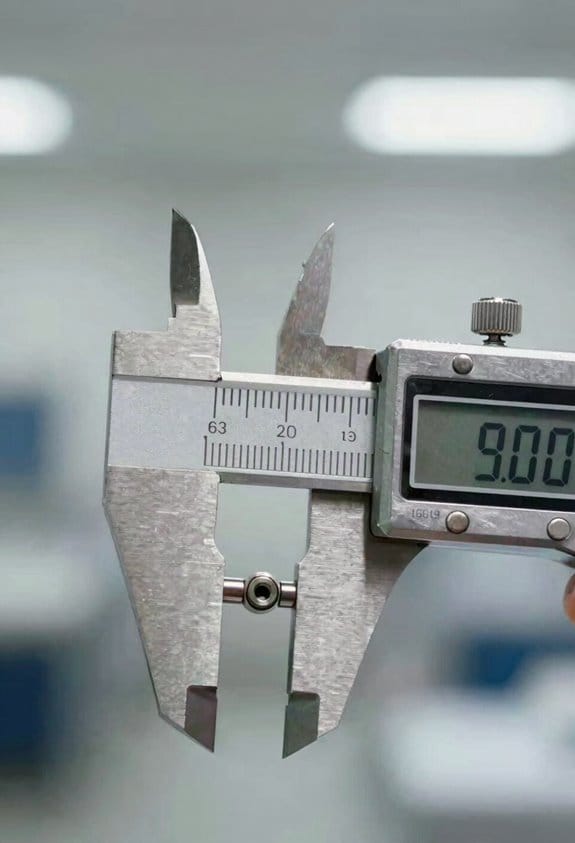
If you’ve ever built something that didn’t fit, this is why.
Although unit mistakes can feel tiny, they can wreck projects, missions, and patient care. I want you to see the common failure modes so you can stop them before they start.
Why this matters: a single wrong conversion can make a part unusable or a medication dangerous.
Manufacturing — how do unit mix-ups break parts?
Why it matters: a misplaced decimal or wrong conversion means a component won’t assemble and can create safety hazards.
Real example: a CNC shop in Ohio machined a shaft 2.54 mm too short because someone treated inches as millimeters; the motor coupling failed in testing and cost $45,000 to remake and retest.
How to prevent it:
- Label drawings with both units and the conversion factor, e.g., “Ø10 mm (0.3937 in)”.
- Use a single, company-approved conversion tool and bookmark it on all shop computers.
- Add a dimension-check step in inspection: measure three random parts and compare to expected range ±0.1 mm.
- Lock CAM/post-processor modes so it only outputs one unit set.
Key action: log every conversion into a shared spreadsheet with date, who converted, and source.
Aerospace — what happens when units break calculations?
Why it matters: wrong mass or force units create guidance and control errors that can doom a mission.
Real example: a satellite torque calculation used pound-feet instead of newton-meters, shifting attitude control predictions and forcing a last-minute burn that shaved mission life by months.
How to prevent it:
- Standardize on SI units in design docs and add a unit column in every calculation table.
- Require a peer check: a second engineer signs off on conversions before simulation runs.
- Implement automated unit checking in scripts; fail builds if units mismatch.
Critical detail: capture the original and converted unit values in version control commits so you can trace mistakes.
Healthcare — how do kilograms and ounces hurt patients?
Why it matters: dose errors from unit swaps can injure or kill a patient during surgery or in pediatrics.
Real example: a child received 10 times the intended opioid because the prescription listed mg/kg and staff interpreted it as mg/lb; the child required naloxone and a week in ICU.
How to prevent it:
- Standardize dosing on one unit (use mg/kg) and print it on every med label.
- Require double checks: two clinicians must independently calculate and initial high-risk doses.
- Use smart pumps that block entries outside an expected range based on patient weight.
Every dose calculation should also be logged with patient weight, calculator used, and initials.
Training and culture — what should your team do daily?
Why it matters: repeated practice reduces slip-ups when you’re under pressure.
Real example: a factory ran weekly 15-minute drills where technicians converted random dimensions and explained units aloud; error rates dropped 60% in three months.
How to implement:
- Run short unit drills once a week with real examples from your shop or ward.
- Post unit quick-reference cards at workstations showing common conversions and tolerances.
- Make unit-read confirmations part of shift handovers: “Confirmed units: mm.”
Most critical: enforce a culture where anyone can stop work over a unit question.
Final checklist to stop unit mix-ups:
- Pick and enforce one standard unit set per domain.
- Use one approved conversion tool and log every conversion.
- Require peer sign-off for conversions on safety- or mission-critical items.
- Automate unit checks where possible and lock machine modes.
- Train weekly with real examples and keep reference cards visible.
Start by changing one document to include explicit units and a conversion factor today.
Regulatory & Commercial Requirements by Industry
Before you pick units for a product, know that regulators and customers can force your choices — and that affects cost, schedule, and labeling.
Why this matters: using the wrong units can delay certification, trigger fines, or make a product unsellable in a target market.
Regulatory mapping: map laws and standards to unit requirements, so your team knows whether to record measurements in metric or imperial.
1. Steps:
1) Identify applicable laws and standards for your market (e.g., EU Measuring Instruments Directive, US NIST Handbook 44).
2) Extract the unit clause (for example: “mass expressed in kilograms to two decimal places”).
3) Assign owners to implement the unit in drawings, BOMs, and test reports.
Real example: a medical device company had to change packaging labels from ounces to grams for CE marking; that required reprinting 10,000 manuals and delaying launch two weeks.
Compliance timelines: compliance often requires you to reformat data and labels well before launch, so schedule work accordingly.
1. Steps:
1) Add a 12–16 week block into your project plan for certification paperwork and label updates.
2) Freeze unit formats at the start of that block and lock files for editing.
3) Run a final conversion audit two weeks before submission.
Real example: an appliance maker left conversions until late in development and paid a rush fee to retrofit 50,000 product labels.
Labeling rules: industry labeling requirements dictate which units must be visible on packaging and manuals, and those rules influence your industrial design and copy.
1. Steps:
1) Draft label templates that allow for both metric and imperial where required.
2) Prototype packaging with the required unit placements and font sizes.
3) Validate legibility with a simple 3-person review at 1 meter distance.
Real example: a sports equipment firm redesigned a label so the weight in kilograms was front-and-center, which meant moving the logo 10 mm and increasing label height by 5%.
Trade tariffs and costing: tariffs can change your landed cost when declared volumes or weights use different units, so model scenarios and audit conversions to avoid penalties.
1. Steps:
1) Create cost models that calculate duties using both metric and imperial inputs.
2) Run quarterly audits on unit conversions in customs documents.
3) Keep conversion factors documented and versioned (for example: 1 lb = 0.45359237 kg).
Real example: an electronics exporter misdeclared net weight in pounds instead of kilograms and faced a $12,000 tariff adjustment plus a $2,500 penalty.
Final practical tip: maintain a simple unit spec sheet that lists required units, decimal places, and who signs off; treat it like a checklist during design reviews.
How CNCs Convert and Store Metric vs. Imperial Offsets
Before you switch a CNC between metric and imperial modes, you need to know why it matters: the controller converts and stores offsets differently and small rounding changes can ruin a part.
Here’s what actually happens when you change modes inside a CNC controller and why your offsets move around.
The controller keeps tool and work offsets in tables and tags each entry with a units flag, so when you flip between millimeters and inches the machine converts the numeric values. On many older controls that conversion truncates after a set number of decimals, while newer controls preserve more digits; that difference can change a 0.001 in offset into 0.0254 mm or into 0.025 mm depending on resolution. Example: you set a tool length offset of 0.100″ then switch to metric — the controller converts it to 2.54 mm; if the control stores only two decimals it becomes 2.54 mm (fine), but if it truncates to 2.5 mm your tool is now short by 0.04 mm. Check your controller’s stored-unit flag and decimal resolution first.
Why this conversion matters: if you rely on tiny offsets for form or runout, rounding can push you out of tolerance.
Real-world example: on a bench top mill you use a 0.002″ Z touch offset for a finishing pass; after a units switch the offset becomes 0.05 mm in storage but a truncated store at 0.04 mm changes the finish by 0.001″ unexpectedly.
How the controller handles numbers and what you should verify.
Before you convert, look up two parameters: the offset table resolution and the stored-units flag (often called OFFSET_UNIT or similar). Then run this checklist:
- Read the exact stored offset value from the table and write it down.
- Manually convert the value (multiply inches by 25.4, divide mm by 25.4) and compare to the controller result.
- If the stored number loses precision, change the resolution parameter or re-enter the offset in the new units.
Short check.
Example: you read G54 Z = -1.2345” and the control shows -31.3563 mm after conversion; if the control displays only -31.36 mm, you know you have rounding.
How to confirm offsets after switching so you don’t scrap parts.
Why confirm: verifying prevents surprises and keeps tolerances consistent.
Steps to verify:
- Switch modes.
- Read the offset table values and confirm they match your manual conversion within the controller’s resolution.
- Run a 1 mm or 0.040″ probe/confirm move toward a known surface and measure the actual change with an indicator or test piece.
- If discrepancy > your tolerance, re-enter offsets in the active unit system with the exact decimals you need.
Short test move.
Example: after switching to metric, jog Z down 1 mm toward a fixed block and compare the indicator change; if you expected 0.100 mm but measure 0.095 mm, adjust the stored offset.
Practical tips to avoid surprises when you or someone else toggles units.
Why this helps: consistent rules stop accidental shifts that cost time.
- Fix a shop standard: choose one unit (mm or inches) for offsets and keep it.
- Put a sticker on the panel: “Offsets stored in: mm” or “Offsets stored in: inches.”
- When handing a program to someone, include a comment line with converted offsets and the unit of storage.
Short note.
Example: tape a printed list of G54–G59 values in your chosen unit near the control; a new operator can verify before cutting.
If you follow these checks and adjustments you’ll avoid the common unit-conversion traps that cause scrap, unexpected tool crashes, and changed tolerances.
Software, Libraries, and Machine Settings That Stop Conversion Errors
Before you set up conversions between systems, you need to know why it matters: mismatched units cost you parts and time.
Here’s why you’ll care: a 0.5 mm error on a milled face can scrap a $2,000 part. Use conversion middleware so every system follows the same rules. Example: run a REST service that converts all incoming measurements to millimeters, logs the original unit, and writes only mm into your database.
Why use typed unit libraries? Because numbers without units get mixed. Pick a tested library (for example, UnitsNet for .NET or pint for Python) and represent lengths as typed values rather than floats. Steps:
- Install the library and add it to your shared code module.
- Replace raw floats with unit types in function signatures.
- Run compiler checks or unit tests to catch unit mismatches.
Concrete example: change a function signature from double length to Length length (UnitsNet) and you’ll immediately get compile-time mismatches.
Why centralize conversion rules in middleware? So you don’t have eight one-off converters. Set one service to:
- Accept units in requests.
- Validate allowed units (mm, cm, in).
- Convert to your shop unit (pick one: mm).
- Return converted values and write the original unit to logs.
A real example: a PLC sends “12.0” with unit flag “in”—the middleware converts to 304.8 mm and records both values.
Why keep CNC controller offsets in one unit system? Because dual storage creates silent errors. Pick a single controller unit (I suggest millimeters for metric shops, inches if most tooling is imperial) and store all offsets in that unit only. Example: set the controller parameter UNITS = mm, convert all offsets to mm, and label offsets with a timestamp and operator ID.
Why enable precision flags? Because rounding hides error sources. Turn on flags that specify decimal places and significant figures (for example: 0.01 mm and 4 significant figures). Steps:
- Decide tolerances for each operation (finish pass ±0.02 mm).
- Configure the software to round only at the last display or output stage.
- Log raw values and rounded values separately.
Concrete example: a CAM post-processor should output toolpaths rounded to 0.001 mm only if your machine can hold that; otherwise use 0.01 mm.
Why run automated tests and spot checks? Because they catch edge cases before metal is cut. Do this:
- Create unit tests that pass values in inches, cm, and mm and assert outputs in your shop unit.
- Add integration tests that simulate NC code with conversion middleware.
- Monthly, randomly pick five produced parts and measure critical dimensions against recorded converted values.
Example: an automated test converts 2.54 cm to 25.4 mm and asserts exact equality.
Final practical checklist you can follow today:
- Choose a single shop unit (mm or in) and document it. Pick mm if most prints and tools are metric.
- Install a typed unit library in your codebase (UnitsNet or pint).
- Implement a conversion middleware service that logs original units.
- Set controller parameter UNITS and store offsets only in that unit.
- Configure precision flags (e.g., 0.01 mm, 4 sig figs) and log raw vs rounded.
- Add unit and integration tests, plus monthly physical spot checks (measure five parts).
You won’t fix everything at once. Start by forcing all new code to use the unit library and by making one middleware endpoint that converts to your chosen shop unit.
Workflow Rules to Minimize Unit Mistakes on International Teams
If you’ve ever worked with teammates in different countries, this is why unit rules matter: a small mismatch can stop a build or ruin a batch.
Why this matters: a single wrong unit can cost you thousands of dollars or days of rework.
1) Set team nomenclature early.
- Step 1: Decide which groups use Metric and which use Imperial, then write it into the project charter.
- Example: On Project X, Design (Sweden) uses Metric and Fabrication (US) uses Imperial; we listed that on page 1 of the charter and on the first line of every drawing.
- Step 2: Label every file and drawing with units in the filename and title block, for example “gear_A_v2_mm.dwg” or “gear_A_v2_in.dwg”.
2) Assign conversion ownership for each deliverable.
- Why this matters: one person prevents finger-pointing when numbers disagree.
- Step 1: Name a Conversion Owner for each deliverable in the schedule (e.g., “Conversion Owner: Maria G., Drawing 12”).
- Step 2: That owner verifies every number and documents the conversion method in a one-page note attached to the deliverable.
- Example: Maria converted a hole pattern from 12.7 mm to 0.5 in, recorded the exact factor used (1 in = 25.4 mm), and saved the note as “conv_note_gearA.pdf”.
3) Specify conversion methods, rounding, and significant digits.
- Why this matters: different rounding rules create cumulative error.
- Steps:
- Use the exact conversion factors: 1 in = 25.4 mm, 1 ft = 0.3048 m, 1 lb = 0.45359237 kg.
- State rounding rules per field: dimensions to 0.01 mm or 0.001 in, masses to 0.01 kg or 0.01 lb.
- Record significant digits and where to cut or pad.
– Example: For a shaft specified as 12.345 mm, convert to 0.486 in and round to 0.001 in, documenting the rule used.
4) Use one-step conversion tools and lock machine settings.
- Why this matters: multi-step conversions invite mistakes.
- Steps:
- Approve one conversion tool (spreadsheet, script, or calculator) and store it in a shared repo.
- Freeze machine unit settings on CNC, CMMs, and printers; note them on the job sheet.
- Require screenshots of settings before a first run.
– Example: The shop uses “convert_v1.xlsx” for all length conversions, and operators post a screenshot showing the CNC controller set to inches.
5) Enforce checklists that include unit fields.
- Why this matters: checklists catch overlooked unit errors before release.
- Steps:
- Add explicit unit fields to every checklist item (drawing, BOM, test report).
- Require signature and timestamp from the Conversion Owner.
- Reject items missing unit entries.
– Example: The acceptance checklist item “BOM units” must read “mm” or “in” and be signed.
6) Train teams on feed rates, tolerances, and cumulative error.
- Why this matters: machining and measurements behave differently in different units.
- Steps:
- Run a one-hour training that covers feed rates (mm/min vs in/min), tolerance stacks, and when to escalate.
- Provide a one-page cheat sheet with sample calculations (e.g., 500 mm/min = 19.685 in/min).
- Tell teams to escalate unit questions to an engineer when cumulative tolerance exceeds 10% of part tolerance.
– Example: In training, you walk through a 3-feature tolerance stack where three 0.05 mm tolerances add up and show when to stop and ask engineering.
Final quick rules you can follow today:
- Put units in filenames and title blocks. Do it now.
- Name a Conversion Owner for every deliverable. Do it now.
- Use one approved converter and lock machine units. Do it now.
If you follow these steps, you’ll cut unit mistakes and save time.
Case Studies: Mars Climate Orbiter, Shop-Floor Errors, and Dosing Incidents
If you’ve ever mixed up units, this is why.
Why it matters: a unit error can ruin an entire project or hurt someone in seconds. I’ll show you three clear cases and specific things you can do to stop them.
Mars Climate Orbiter — What happened and what you should check
Why it matters: navigation forces calculated with the wrong units sent a probe off course.
Real-world example: engineers used pound-seconds (lbf·s) where the flight software expected newton-seconds (N·s); the probe burned at the wrong trajectory and was lost.
How to prevent it:
- Standardize units in a single source of truth (e.g., a project unit-spec doc everyone signs).
- Add automated unit-checking in code: assert units on inputs and outputs, and fail builds if mismatches occur.
- Include a unit-conversion line in every interface header with a test vector (example: 1 lbf·s = 4.44822 N·s).
Do one quick verification: before any launch or major burn, run a unit-consistency script that checks all files referenced by guidance and propulsion.
Shop-floor CNC errors — What happened and what you should check
Why it matters: wrong machine units change offsets and feeds, producing scrap parts.
Real-world example: a machinist set a CNC axis to inches while the CAM output was metric; tolerances failed and dozens of parts were scrapped.
How to prevent it:
- Lock machine unit settings and label the control panel with the allowed unit (e.g., “Machine units: mm only”).
- Add a pre-run checklist with 3 checks: controller units, CAM units, and part program header. Numbered steps make this actionable.
- Use a small test cut: program a 10 mm reference slot and measure it before running the full job.
Do this every shift: measure the 10 mm slot and record the result on the job sheet.
Healthcare dosing near-miss — What happened and what you should check
Why it matters: confusing ounces and milliliters can overdose a patient in seconds.
Real-world example: a nurse read “oz” and gave a medication intended as 30 mL but administered 30 oz, nearly causing harm.
How to prevent it:
- Standardize medication volumes to a single unit in your facility (recommendation: mL).
- Label syringes and bottles with both units and the exact numeric conversion (example: “30 mL (≈1.01 fl oz)”).
- Use a two-step verification for all liquid meds: the administering clinician reads the dose aloud and a second clinician confirms.
Quick habit: always convert suspicious unit labels on a calculator app and write the converted volume on the medication label.
Final actionable checklist to take right now
Why it matters: a small habit change prevents most unit mistakes.
- Choose one unit system per project or site and publish it.
- Add a visible label at every human–machine interface showing the allowed unit.
- Create one test measurement or test cut per session and log it.
- Require a written or digital sign-off on unit checks before critical operations.
One final fact: simple unit conversions (like 1 in = 25.4 mm or 1 fl oz ≈ 29.5735 mL) saved projects worth millions and prevented patient harm when enforced.
Quick Checklist to Implement Safe Metric–Imperial Switching
Before you switch units on a project, know why it matters: a wrong unit can ruin a part or create a safety hazard on the first production run.
1) Confirm project units and lock settings
- Why this matters: if your CAM file is in millimeters but the machine reads inches, you’ll cut the wrong size.
- Steps:
- Open the CAD/CAM file and read the units shown in the file header.
- Set your CAD, CAM, and machine controller to the same units and lock those settings.
- Save a copy named with the unit (example: Widget_A_v3_mm.dxf).
– Real example: a shop saved a STEP as “part.step” and the controller assumed inches; the operator locked the controller to inches and the part was oversized by 25.4×.
2) Document conversion rules, precision, and rounding
- Why this matters: rounding differently at each step will move tolerances out of spec.
- Steps:
- Choose a conversion factor (1 in = 25.4 mm).
- Decide precision: typically use three decimals for mm (0.001 mm) for fine parts or four for inches (0.0001 in) on CNC.
- Define rounding rules: round final dimensions, never intermediate toolpaths.
– Real example: an aerospace piece needed ±0.05 mm; they agreed to convert to mm and keep dimensions to 0.01 mm, which prevented cumulative rounding error.
3) Apply labeling standards on drawings and parts
- Why this matters: visible labels stop someone from loading the wrong file or misreading a drawing.
- Steps:
- Put the unit in the title block and filename (example: “BrakePlate_mm”).
- Stamp or tag physical fixtures with a durable label showing units.
- On drawings, show both systems only when necessary and mark the primary system with PRIMARY UNIT.
– Real example: a fixture had no label and was machined in inches; adding a stainless tag with “UNITS = mm” prevented future mistakes.
4) Run one-step tool conversions and verify results
- Why this matters: converting one complete toolpath and checking it catches scale or feed-unit issues before production.
- Steps:
- Convert a single toolpath from source to target units, keeping feeds and speeds as separate items.
- Simulate that toolpath in your CAM and visually inspect dimensions.
- Cut a short verification piece and measure three critical dimensions.
– Real example: a shop converted a probe pass to mm, simulated the path and found a 0.5 mm offset caused by a wrong origin; they fixed the origin before cutting full parts.
5) Explain machine differences (resolution, feed-rate units) to operators
- Why this matters: machines interpret numbers differently, so operators need to know how values will change on the machine.
- Steps:
- List controller resolution (for example: 0.001 mm or 0.0001 in) and show how a 0.1 mm command looks on the control.
- State feed-rate units explicitly and how to convert (mm/min = ipm × 25.4).
- Run a short demo on the shop floor showing the same command in both units.
– Real example: an operator saw a feed of “300” and assumed mm/min; after a demo, they learned the Haas was in ipm and the feed was 300 ipm, which would have cut too fast.
6) Test critical conversions in a controlled run and record results
- Why this matters: test runs prove the conversion works and create a traceable record for quality.
- Steps:
- Select the three most critical dimensions and tolerance checks.
- Run a controlled short program that produces a test coupon.
- Inspect with calipers or CMM, record results, and store the report with the job folder.
– Real example: a medical parts supplier ran a 5-minute test coupon, measured all features, and logged results; the log prevented repeat mistakes on a later batch.
7) Update procedures and keep labels current when tools or software change
- Why this matters: software updates or new cutters can change how conversions behave.
- Steps:
- When you install new CAM versions or post-processors, repeat steps 1–6 and update the change log.
- Replace any physical labels within 30 days of a unit-related change.
- Add a one-line note in the job folder listing what changed and who tested it.
– Real example: after upgrading a post-processor, the shop reran a verification coupon and caught a feed-rate unit mismatch before it reached production.
8) Include short training modules for staff on device behavior and feeds
- Why this matters: trained staff catch unit issues before they reach the machine.
- Steps:
- Create a 10–15 minute module showing unit settings, a conversion example, and how to read the controller display.
- Require operators to pass a quick quiz and keep the certificate in their personnel file.
- Run a hands-on refresher every six months.
– Real example: after a 15-minute class, a junior operator prevented a unit error by noticing the controller unit label and asking a senior tech.
Final checklist (use this before any job):
- Confirm and lock project units; save a unit-named file.
- Document conversion factor, precision, and rounding rules.
- Label drawings, files, and fixtures with the primary unit.
- Convert one complete toolpath, simulate, and cut a verification coupon.
- Record inspection results and store them with the job.
- Update procedures and labels after software or tool changes.
- Train staff with short modules and keep records.
If you follow these steps, you’ll catch unit mismatches early and avoid rework.
Frequently Asked Questions
How Do Units Affect Contractual Liability and Insurance Claims Internationally?
I’ve found contractual ambiguity over units often triggers insurance disputes; I’d argue misstated units shift liability, void policies, and force costly litigation, so I recommend explicit unit clauses, dual-unit specs, and clear conversion standards.
Can Legacy Drawings Without Units Be Legally Interpreted as Metric or Imperial?
Yes — they can, but I’ll warn you: legal ambiguity means courts use evidentiary standards like drafting history, industry practice, and expert testimony to decide whether ambiguous legacy drawings imply metric or imperial measurements.
What Training Frequency Ensures Long-Term Unit-Conversion Competency?
Like tending a garden, I’d schedule periodic refresher sessions every 3–6 months and use spaced practice (short drills plus real tasks) so I don’t rust—annual deeper assessments keep long‑term unit‑conversion competency sharp.
How Do Embedded Iot Sensors Report Units Across Mixed-Unit Systems?
They report values with sensor metadata indicating measured units and precision; I’ll implement unit negotiation so devices agree on Metric or Imperial, convert payloads as needed, and log conversions for traceability and error reduction.
Are There Standards for Labeling Physical Parts With Unit Provenance?
Yes — I cite NASA’s Mars Climate Orbiter as an example: I recommend Unit provenance and Traceability labeling via ISO 80000-based tags and QR-linked records so manufacturers and engineers can verify units and history immediately.